Device Views
DeviceView
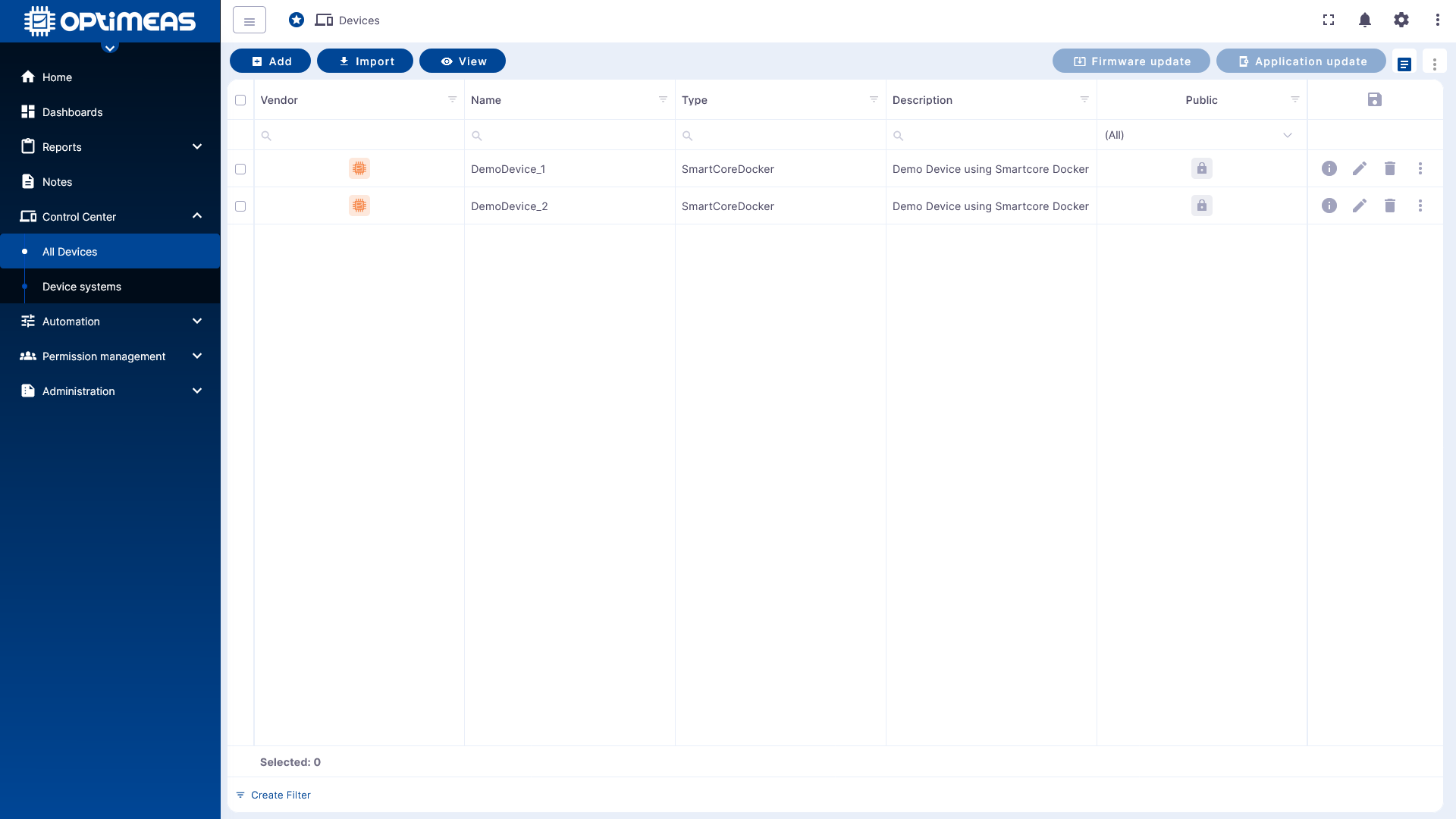
The DeviceView is the central working view for devices in optiCLOUD. While dashboards are primarily used to visualize measurement values, the DeviceView bundles information, statuses, and actions related to device administration and fleet management into a configurable interface.
Depending on the task, a DeviceView can be structured differently. For example, separate views can be created for service, firmware management, diagnostics, or measurement data. Each view can display the relevant columns, information, and actions.
Use and Benefits
DeviceViews help you find device information faster and execute typical workflows directly from a single view. This includes, among other things:
- Displaying device information in tabular form
- Customizing visible columns and content to a specific use case
- Providing appropriate actions in the button bar
- Creating multiple specialized views for the same devices
This allows different teams to work with a view of the same device inventory that is tailored to their specific tasks.
Create a New View
New DeviceViews are created via the top action bar. After opening the view manager, existing views can be selected or new views added using the plus icon.
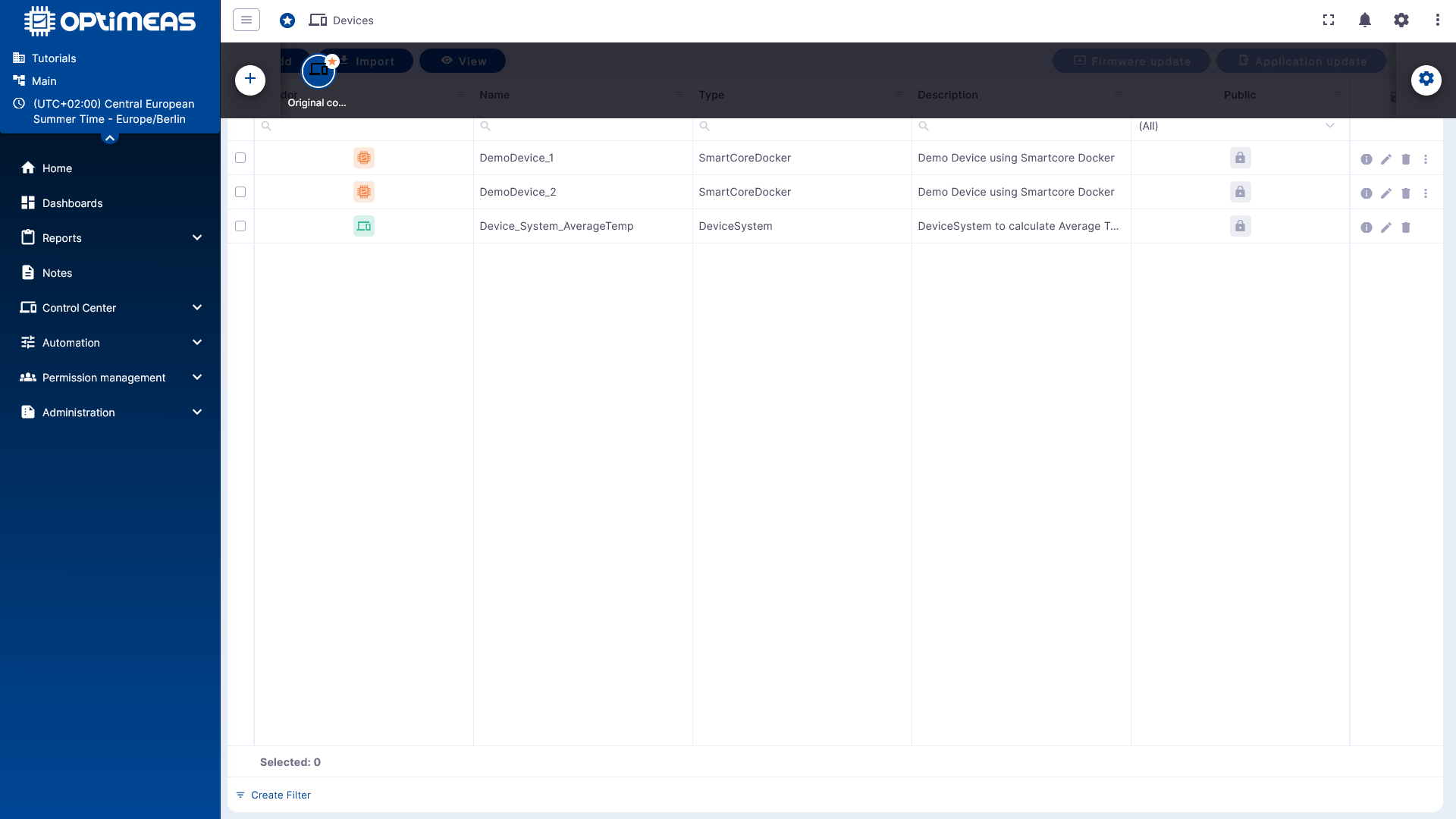
After creation, the configuration dialog opens. Here, you can specify which data is displayed and how the view is structured.
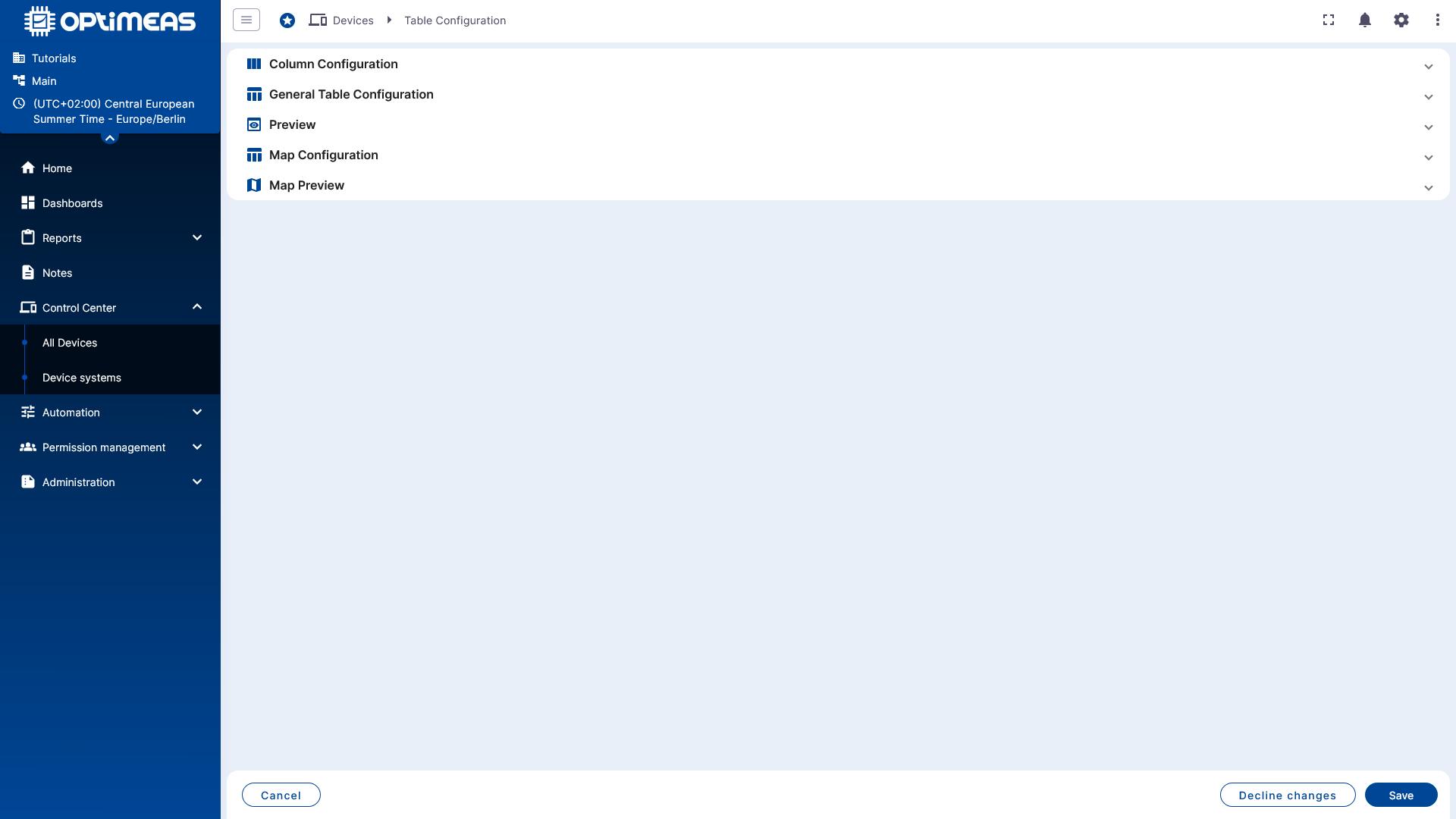
Configuration Structure
The configuration of a DeviceView is divided into several sections:
- Column configuration for selecting the data to be displayed
- Table configuration for general settings of the view and available actions
- Preview to check the current configuration directly
This allows you to build a new view step by step and validate it immediately.
Defining Columns
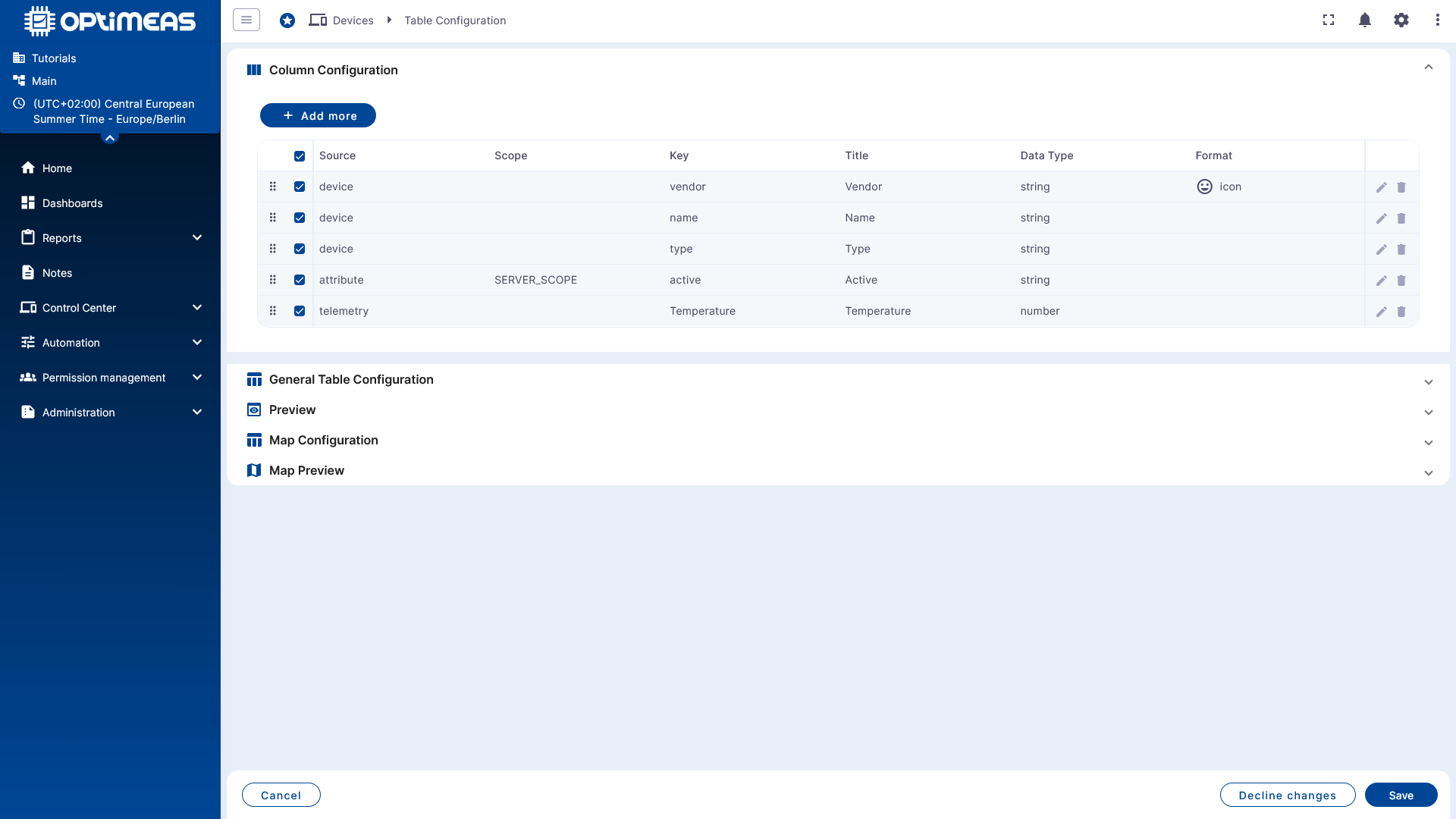
Additional information can be added to the table via Add Column. For each column, you specify which device information is displayed and in what format it should be presented.
Examples of content include:
- Device name or label
- Device type
- Status information
- Last communication
- Specific attributes or measured values
Configure Table and Actions
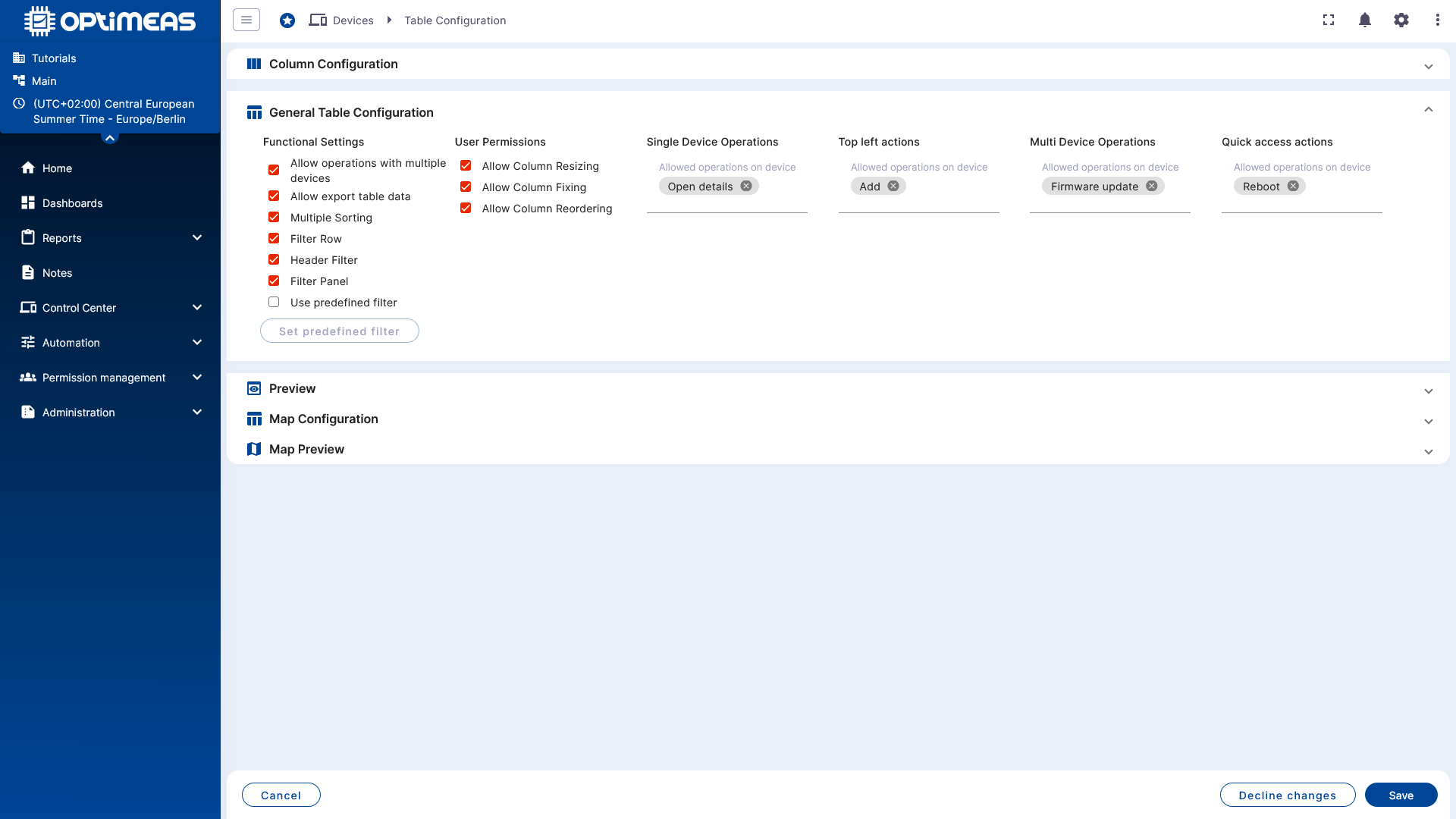
The table configuration section determines how the view behaves overall. Here, you can define general table properties as well as available actions in the interface.
This allows a DeviceView to not only display the appropriate information but also provide the control options relevant to the respective process.
Check Preview
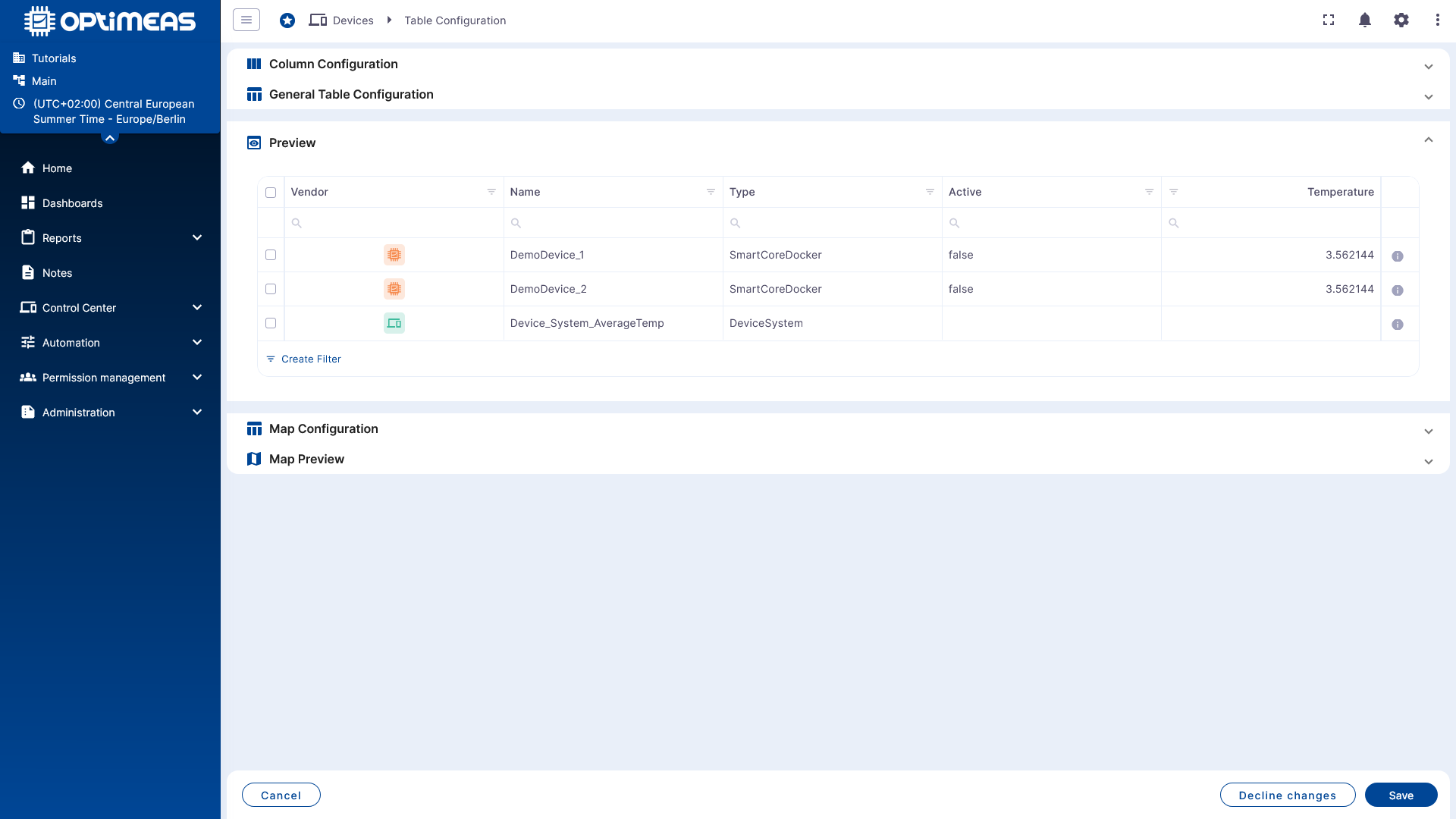
The preview shows directly how the current configuration affects real device data. This allows you to determine early on whether the columns, order, and content have been selected appropriately.
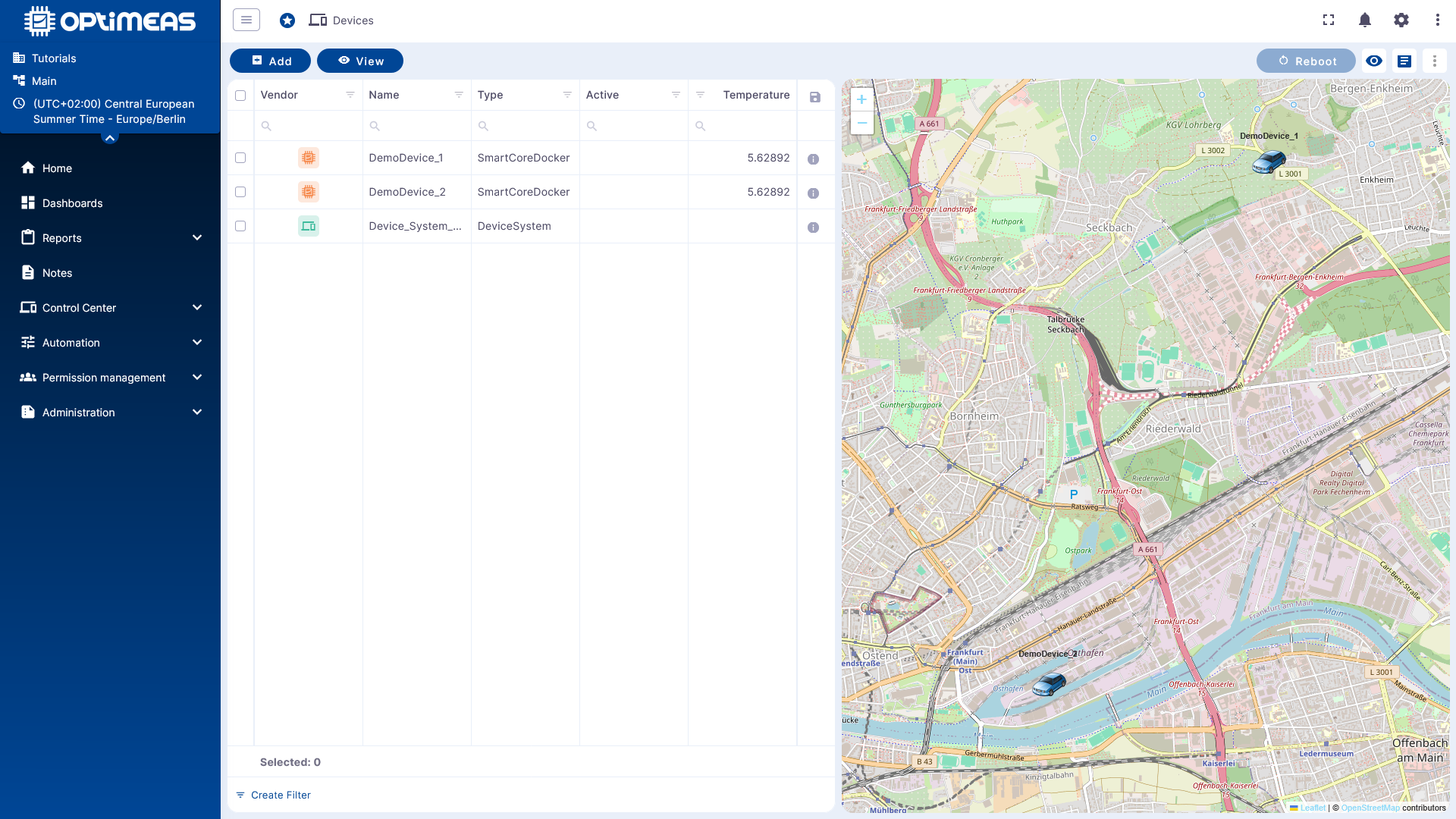
Use Map View
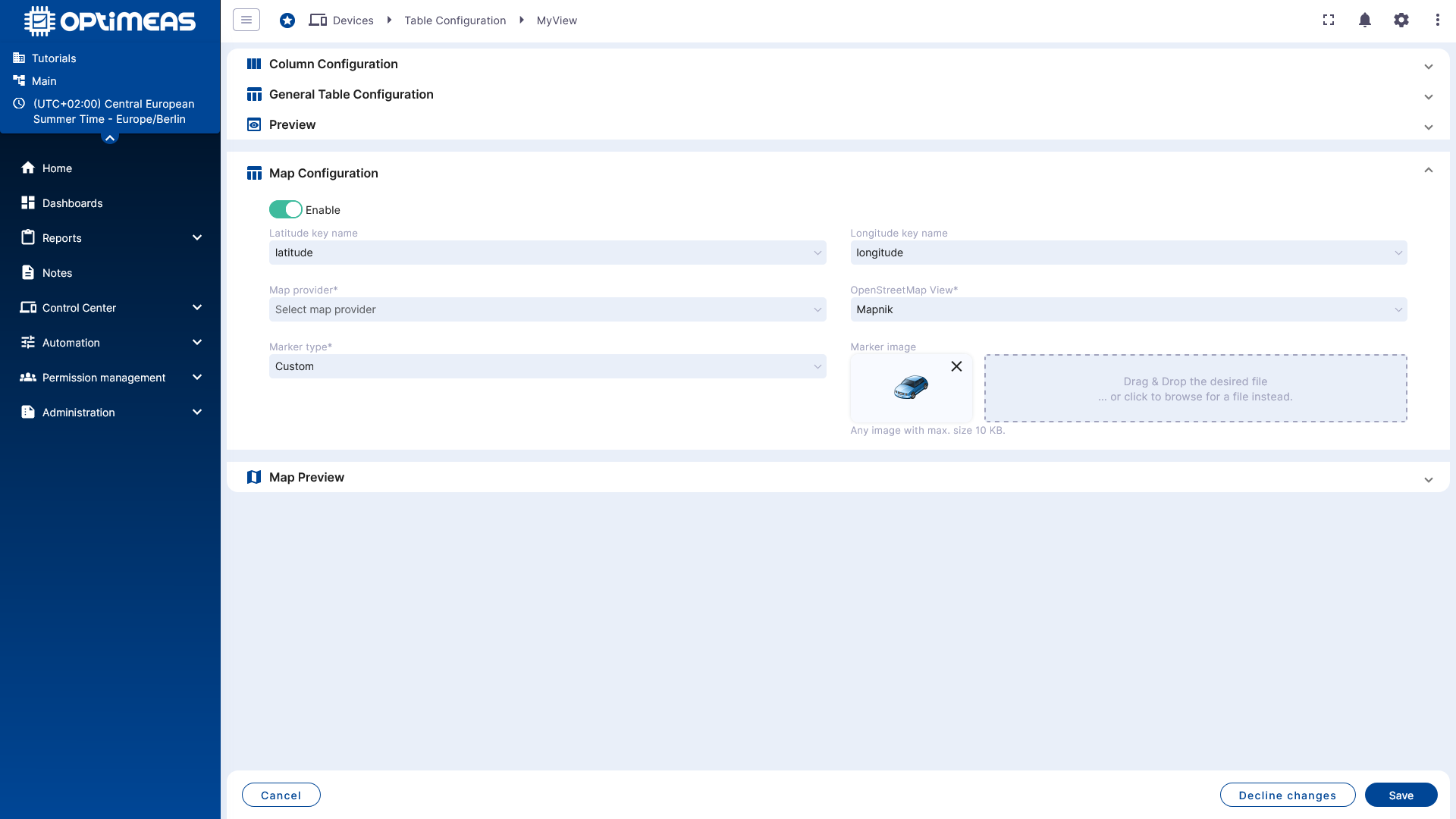
In addition to the table view, a DeviceView can also be configured as a map view. This is particularly useful when monitoring location-based devices or when devices need to be geographically organized.
The map configuration determines which information is used for display on the map.
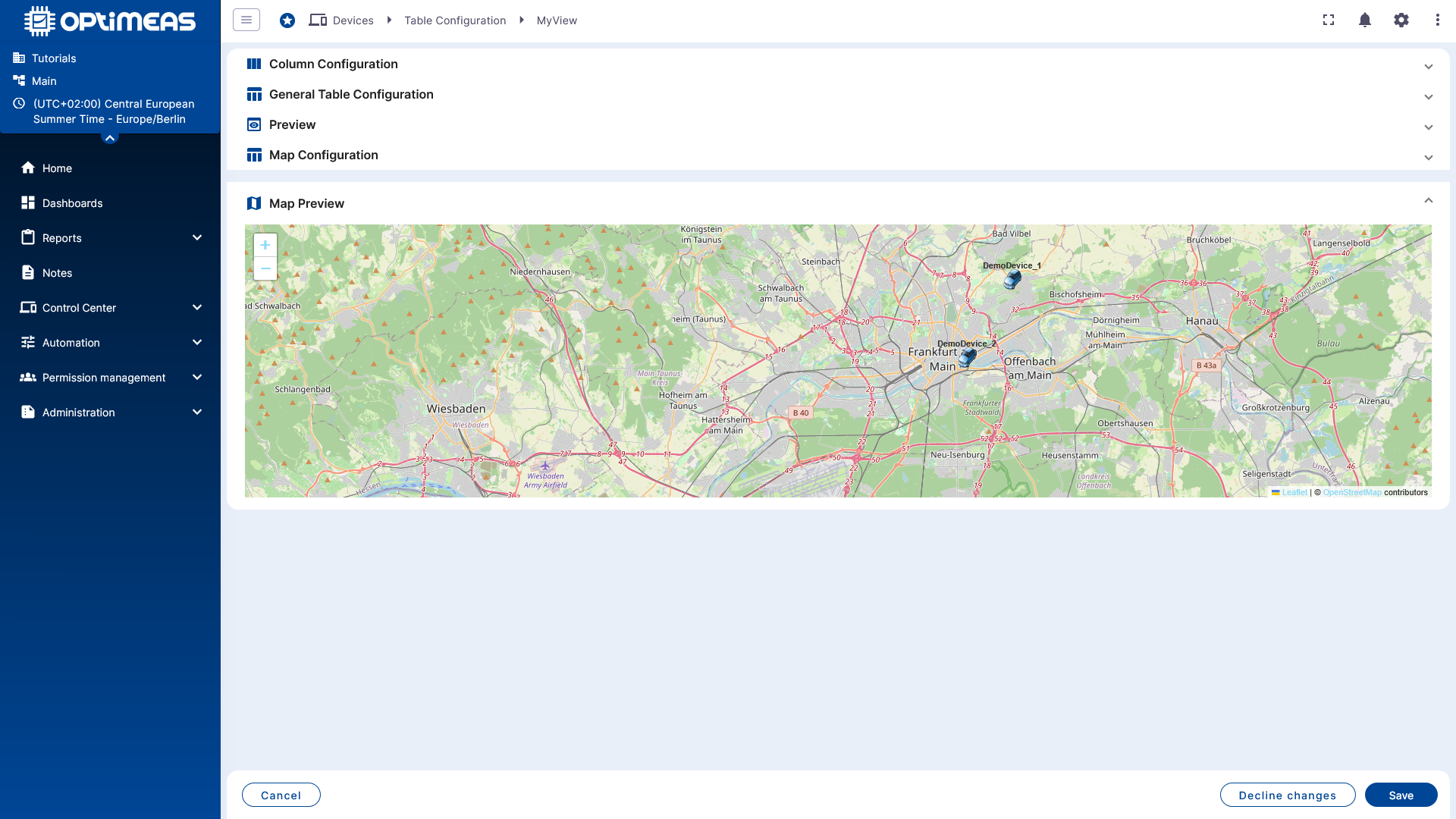
The preview then shows how the devices appear in the map view.
Using the finished view
After saving, the new DeviceView is immediately available in the view bar and can be used like any other device view. This allows you to provide as many different views as needed for various roles and processes.
Practical Recommendations
It makes sense not to plan DeviceViews as general collection views, but to build them specifically for use cases, for example:
- Service and maintenance
- Firmware and update management
- Diagnostics and error analysis
- Overview of measurement data or communication status
This ensures that each view remains clear and provides exactly the information and actions needed in the respective work context.