Settings
Settings
The Settings section consolidates general settings for your tenant in optiCLOUD. Here, you can adjust key configurations related to the appearance, email delivery, legal notices, the home page, and the presentation of historical data.
The available sub-sections are:
These settings apply across the entire tenant and therefore affect not only individual users but also the general behavior and appearance of the platform.
Outgoing Email
The Outgoing Email section defines how the tenant’s outgoing emails are sent.
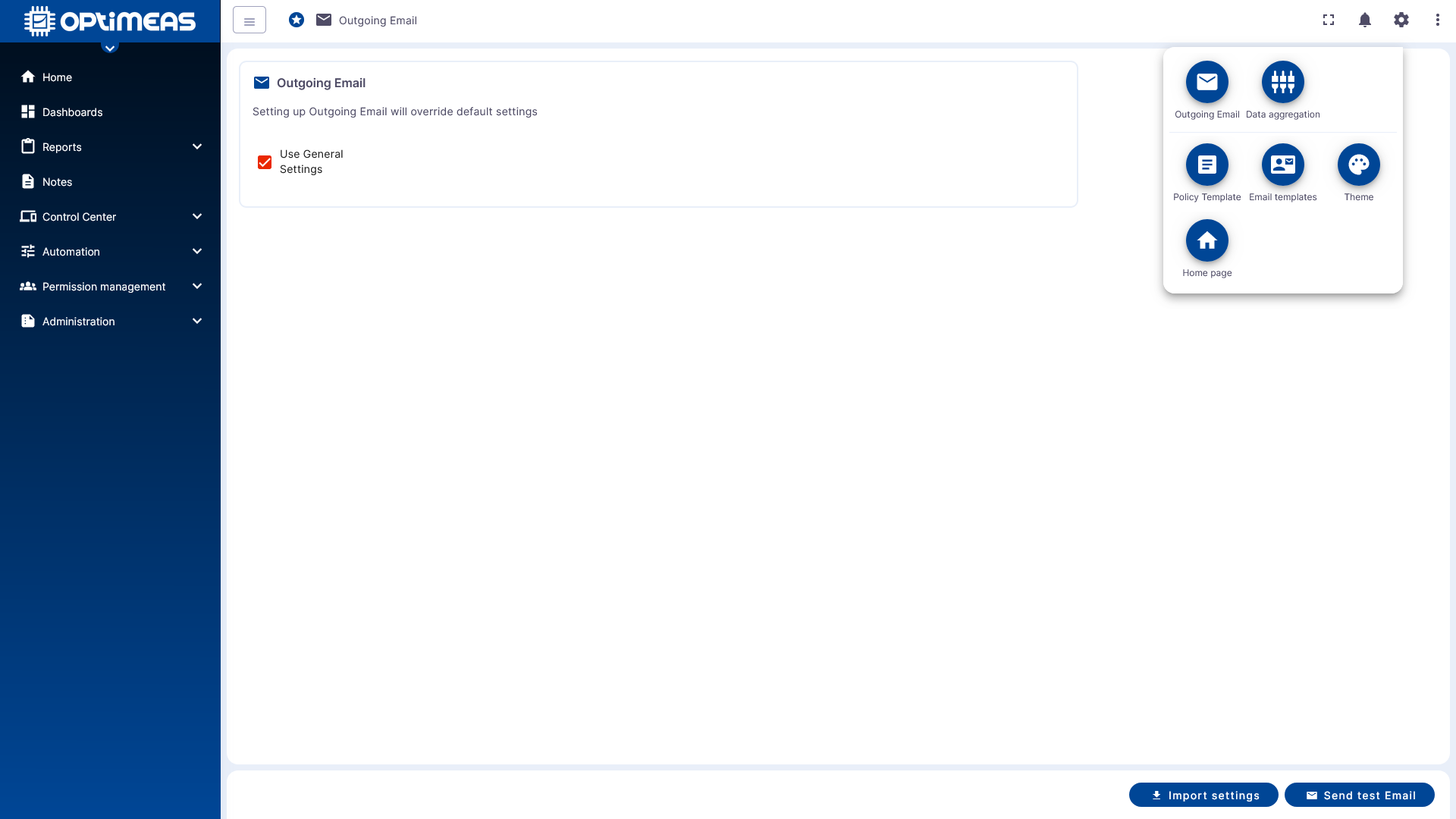
By default, emails can be sent using the standard configuration provided by OptiMEAS. If a tenant wishes to use its own mail server instead, the standard configuration can be disabled and a custom SMTP configuration can be entered.
This is particularly useful if:
- Emails are to be sent via the tenant’s own corporate domain
- Internal security or compliance requirements mandate the use of a custom mail server
Configuration parameters are:
- Sender address
- SMTP host
- SMTP port
- SMTP protocol
- TLS encryption
- Username and password
You can use the test function to check immediately whether sending works correctly.
If no custom SMTP server is configured, outgoing emails will continue to be sent via the default OptiMEAS configuration.
Policy Template
The Policy Template section is used to store tenant-specific legal notices or your own terms of use.
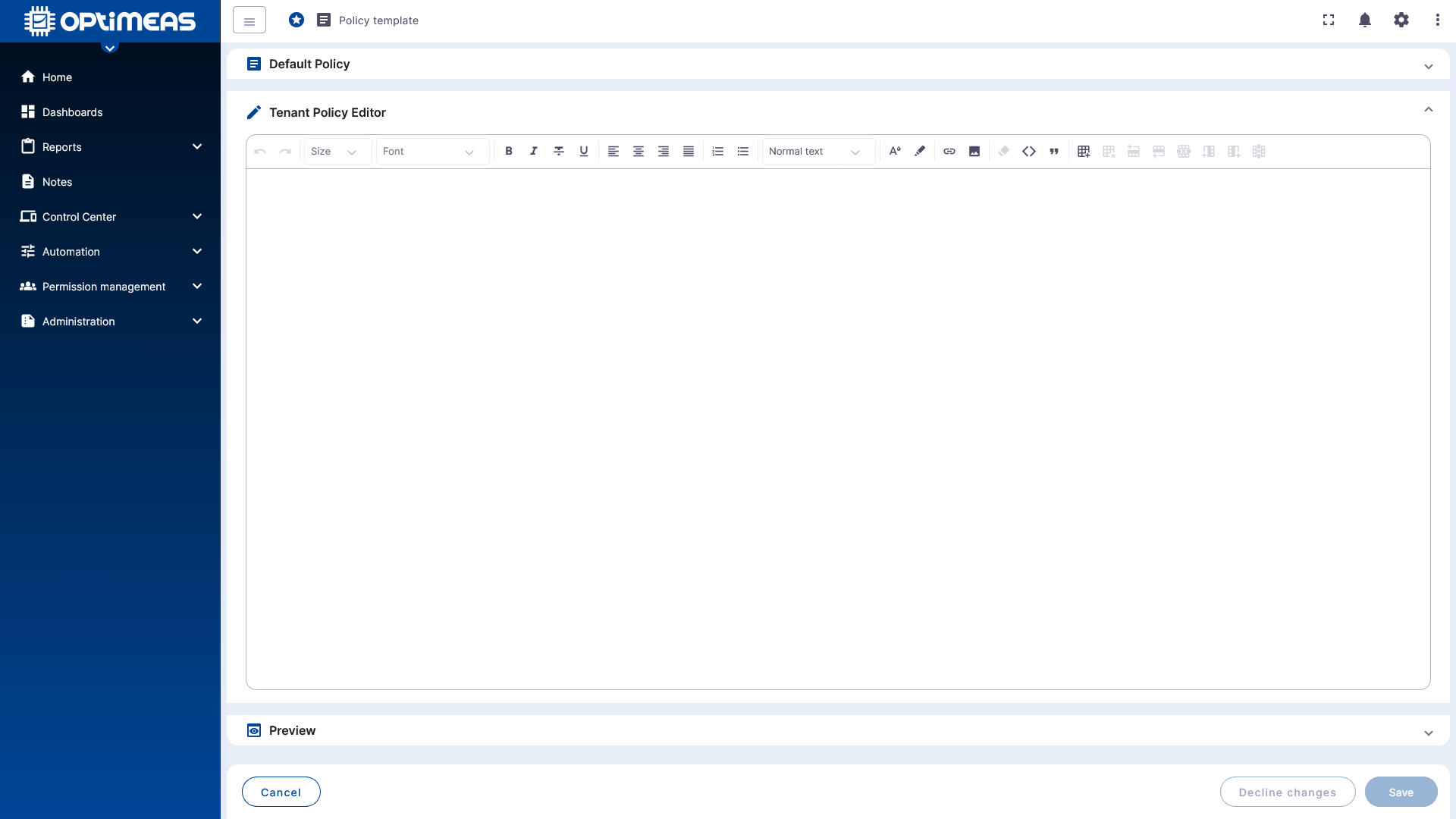
This section is particularly relevant if the tenant is not only used internally but also grants end customers, partners, or other external users access to platform functions or data.
You can maintain and format your own text using the integrated editor. This allows you to store additional terms, notices, or guidelines that apply to the respective tenant.
Important points to note:
- Tenant-specific policies supplement the system-wide guidelines.
- They should not contradict system-wide conditions.
- On self-hosted instances, depending on the system configuration, you can also use entirely custom system-wide guidelines.
The editor is suitable for structuring legal texts and managing them directly within the platform.
Email Templates
The Email Templates section is used to maintain templates for automatically or manually triggered emails.
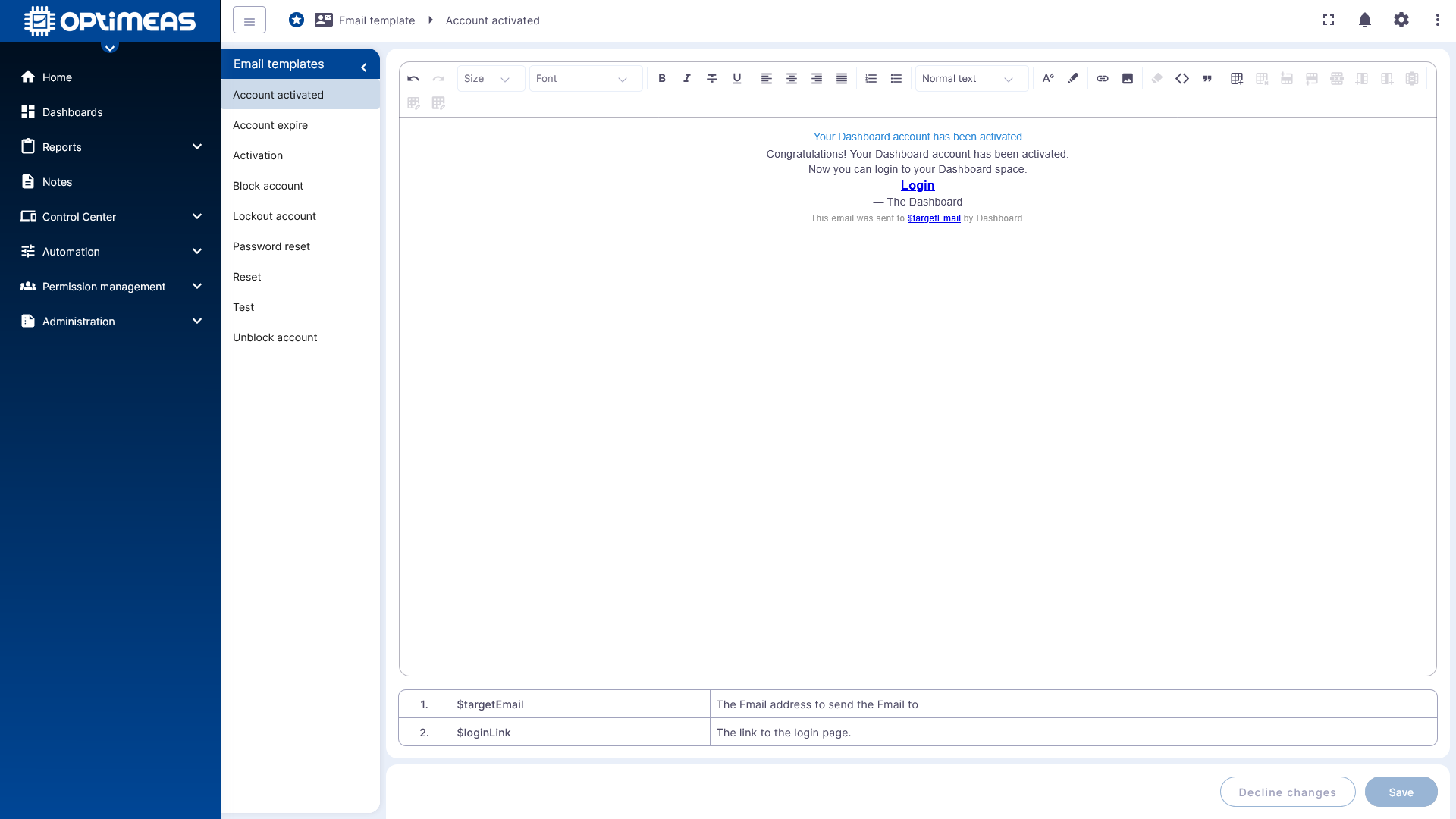
This allows communication with users and customers to be customized for your own tenant. Individual templates can be edited, formatted, and populated with placeholders for dynamic content directly.
Templates include:
- Activation
- Account activation
- Account termination
- Account blocking
- Account lockout
- Password reset
- Reset
- Test
- Account unblock
Depending on the template, various events within the platform are covered, such as:
- Inviting new users
- Activating or blocking accounts
- Password changes or password resets
- Testing email delivery
The available placeholders are also visible in the edit view. This makes it clear which variables can be used in a template, such as the destination address or login link.
Theme
In the Theme section, the tenant’s appearance is customized. This section serves as the foundation for white-labeling and visual customization.
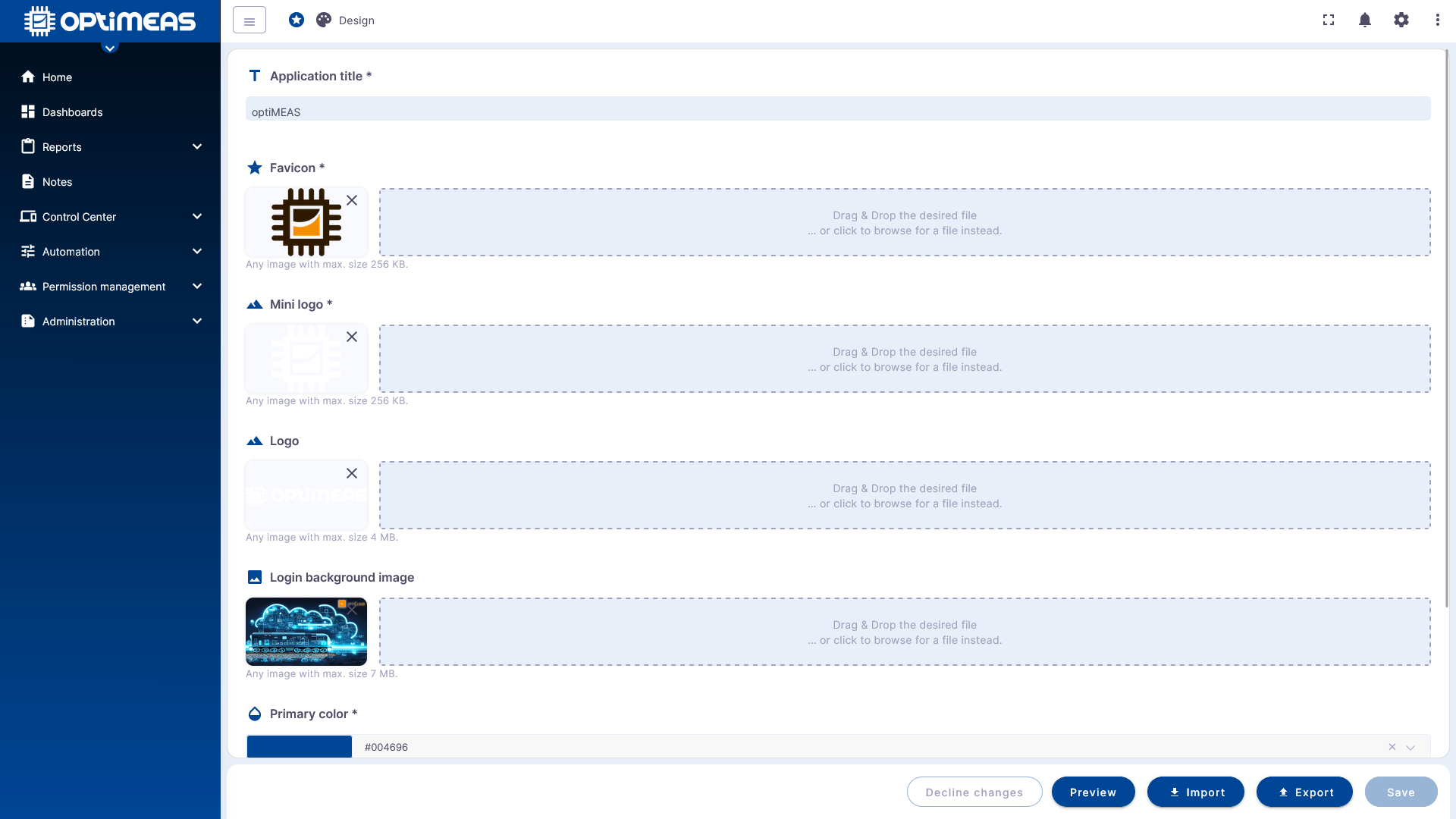
The following can be configured, among other things:
- Application title
- Favicon
- Mini logo
- Logo
- Login area background image
- Primary color
- Secondary color
- Font color
These settings allow the platform to be adapted to your own corporate design. This is particularly relevant for customer-specific portals or branded instances.
The design customizations affect, among other things:
- the browser tab
- the main menu
- the login area
- the basic color scheme of the user interface
Additionally, import, export, and preview functions are available to test design configurations or transfer them between environments.
Home Page
In the Home page section, you define which content is displayed on the tenant’s home page.
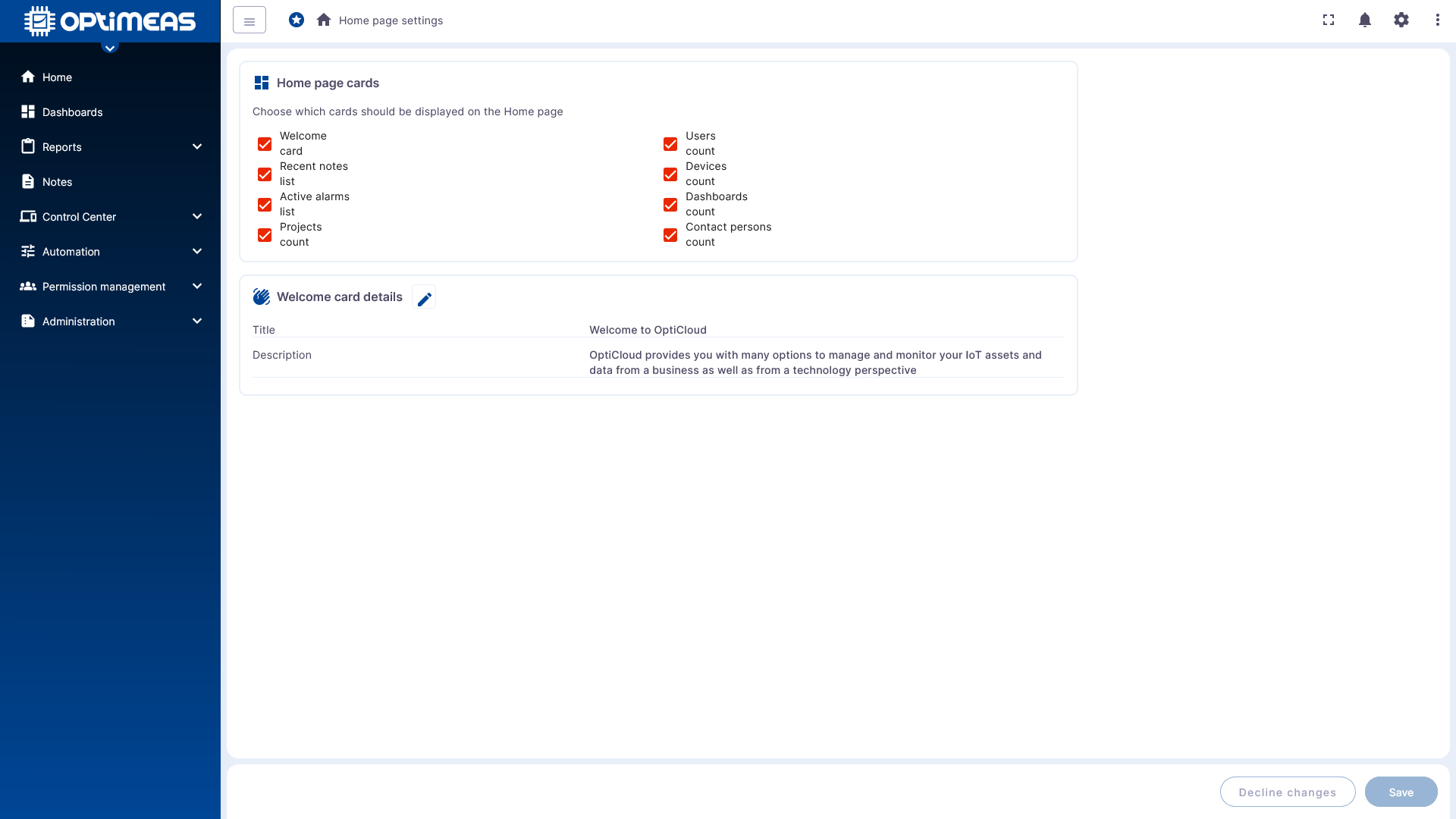
The home page consists of a selection of cards or widgets that provide a quick overview of important information. Depending on the tenant and requirements, different content can be enabled or disabled.
Examples of home page elements include:
- Welcome tile
- Recent notes
- Active alerts
- Number of projects
- Number of users
- Number of devices
- Number of dashboards
- Number of contacts
Additionally, the content of the Welcome Card can be customized, for example via the title and description. This allows the home page to be adapted to the tenant not only functionally but also in terms of communication.
Data Aggregation
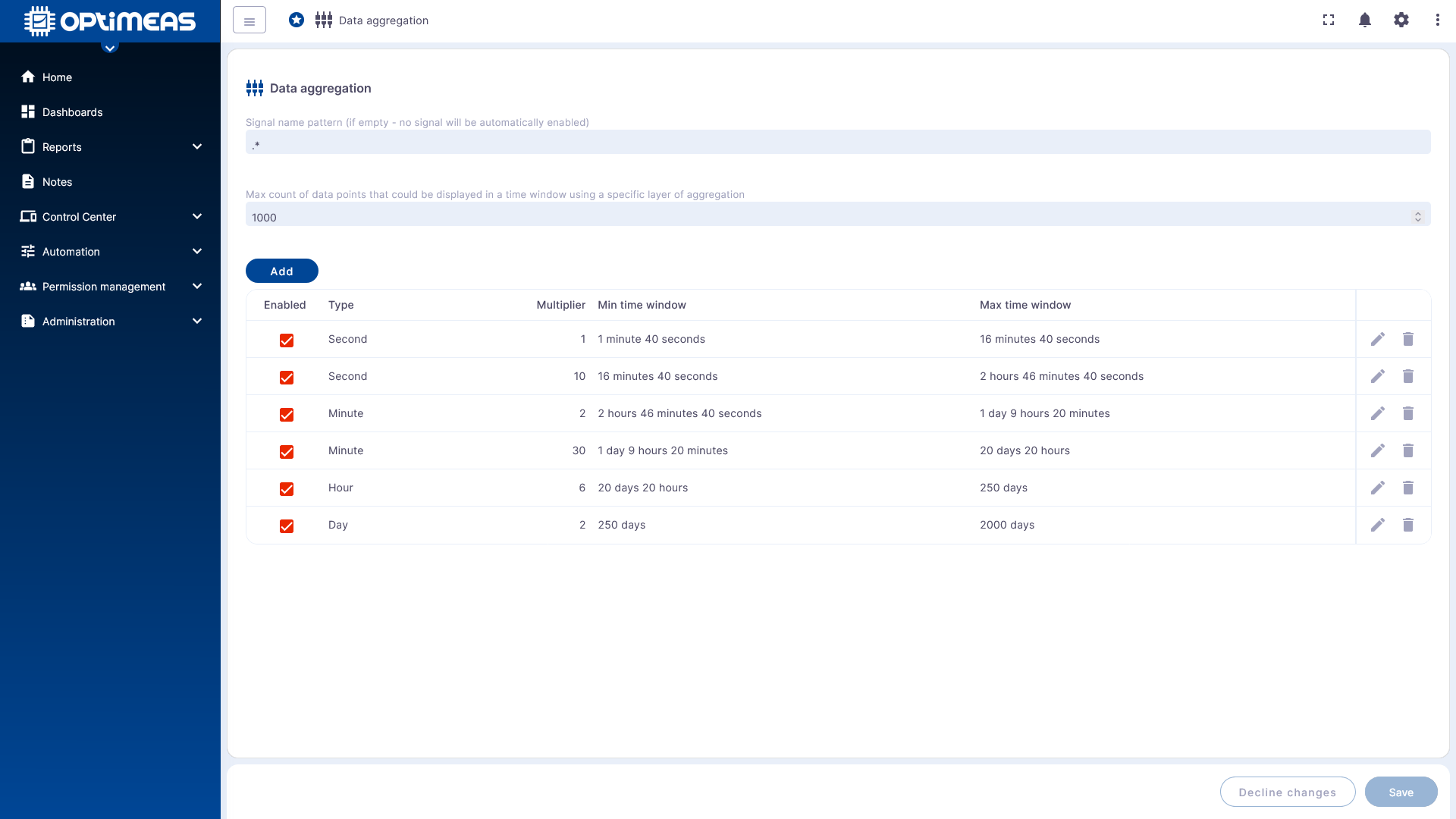
The Data Aggregation section controls how historical measurement data is prepared for visualization in dashboards and other reports.
Real-time data and historical data
Two different types of data are used in optiCLOUD:
- MQTT data for live or real-time views
- OSF data for reliable, high-resolution historical data
MQTT data provides current statuses with minimal delay and is particularly suitable for live monitoring and rapid responses. OSF data, on the other hand, is transmitted at intervals but is more robust and better suited for detailed later analysis.
The differences relate in particular to:
- Timing: MQTT is available immediately; OSF is transmitted with a delay.
- Reliability: MQTT data can be lost during connection interruptions; OSF data is cached and delivered later.
- Data quality: OSF data allows for higher sampling rates and is therefore significantly better suited for precise analysis.
Background Processing
To ensure that large volumes of historical data can be displayed efficiently, optiCLOUD uses aggregation levels. Raw data is not loaded in full for every view, but is aggregated at specific time intervals.
The following metrics are stored for these intervals:
- Minimum
- Maximum
- Last value
This creates a multi-level database that allows the appropriate resolution to be loaded depending on the selected time period. Large time windows can thus be visualized much faster without losing the informational content for the display.
Configuring Aggregation Levels
In the settings area, aggregation levels can be defined with type, multiplier, and minimum and maximum time windows. Additionally, you can specify the maximum number of data points to be displayed within a time window.
This configuration directly affects:
- the performance of historical charts
- the visual readability of large time periods
- the point at which aggregated data, rather than raw data, is used
The appropriate choice of levels depends heavily on the specific process and the measurement dynamics. Rapidly changing signals require different settings than slow-moving processes.
Existing aggregation levels can only be changed if no historical database exists. In other words, if the database does not already contain aggregated data. Otherwise, existing data sets would have to be completely recalculated, which would entail an unmanageable amount of effort.
Practical Recommendations
The settings should not be viewed in isolation, but rather as a tenant-wide base configuration. A coordinated setup in the following order is particularly useful:
- Configure the theme and email delivery for branding and communication.
- Adapt policies and email templates to your specific use case.
- Design the homepage to display the most important information for daily use.
- Define data aggregation to match the measurement data used and analysis requirements.
This results in a tenant that is consistently set up from a technical, visual, and organizational standpoint.