Reports
Reports
In the Reports section, reports and analyses are centrally created and managed in optiCLOUD. Reports allow you to compile data from individual devices or from multiple devices together for a defined period and make it available as a file.
This makes the section suitable for technical analyses as well as for documentation, record-keeping, and the export of historical data.
Applications
Reports help extract data from the platform in a structured manner and make it available in a reusable format. Typical use cases include:
- Evaluation of historical alarm events
- Analysis of device activity and connection status
- Export of telemetry data over defined time periods
- Provision of measurement data for in-depth investigations
- Creation of standardized reports for internal or external purposes
Depending on the type, reports can be based on a single device or multiple devices simultaneously.
Create Report
New reports are created using the Create button. This launches the Report Wizard, which guides you step by step through the configuration.
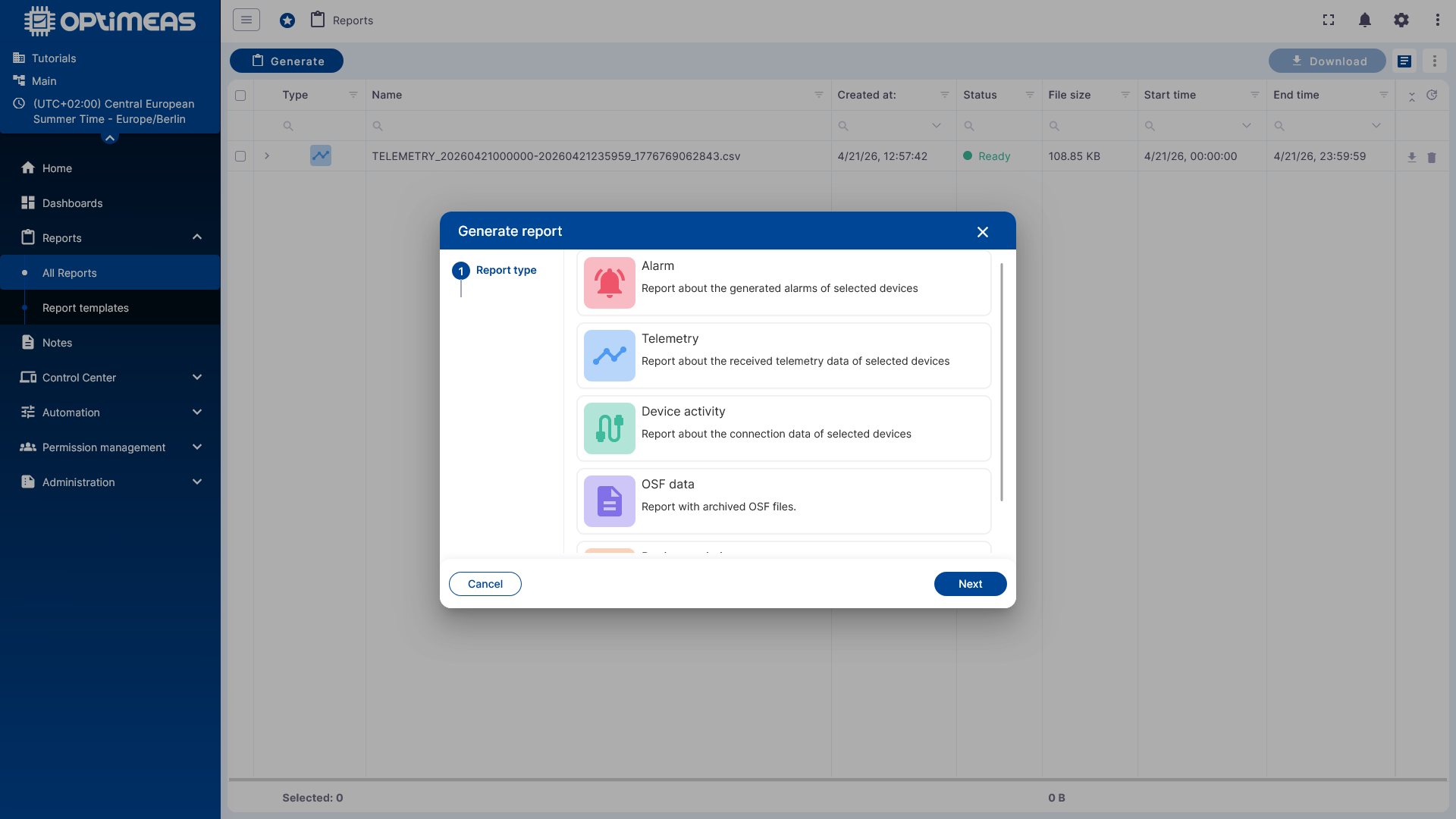
Depending on the report type, the wizard will prompt you for the following information, among other things:
- Desired report type
- Relevant time period
- File name
- Selection of affected devices
- Additional options, such as categories or channels, if applicable
The exact sequence depends on the selected report. Some report types require only a few details, while others require additional configuration steps.
Processing and Status
After the creation process starts, the new entry appears in the report table. The current status is displayed during processing. Once completed, the report is available for download as a file.
Depending on the scope of the report, generation may take varying amounts of time. Small analyses covering short time periods are usually available quickly, while extensive data exports may take significantly longer.
If a report does not complete successfully, the selected parameters should be checked again. These include, in particular, the time range, device selection, and report-specific settings.
Report Types
The report types available depend on the platform configuration and the enabled features. Report types in optiCLOUD include:
- Alarm reports for evaluating historical alarm events
- Device statistics reports for statistical metrics of one or more devices
- Device activity reports for analyzing connection and activity data
- Telemetry reports for exporting historical MQTT data
- OSF or measurement data reports for high-resolution raw data
- Jasper reports for custom-built, template-based reports
Content, export format, and configuration options vary depending on the report type.
Report Table
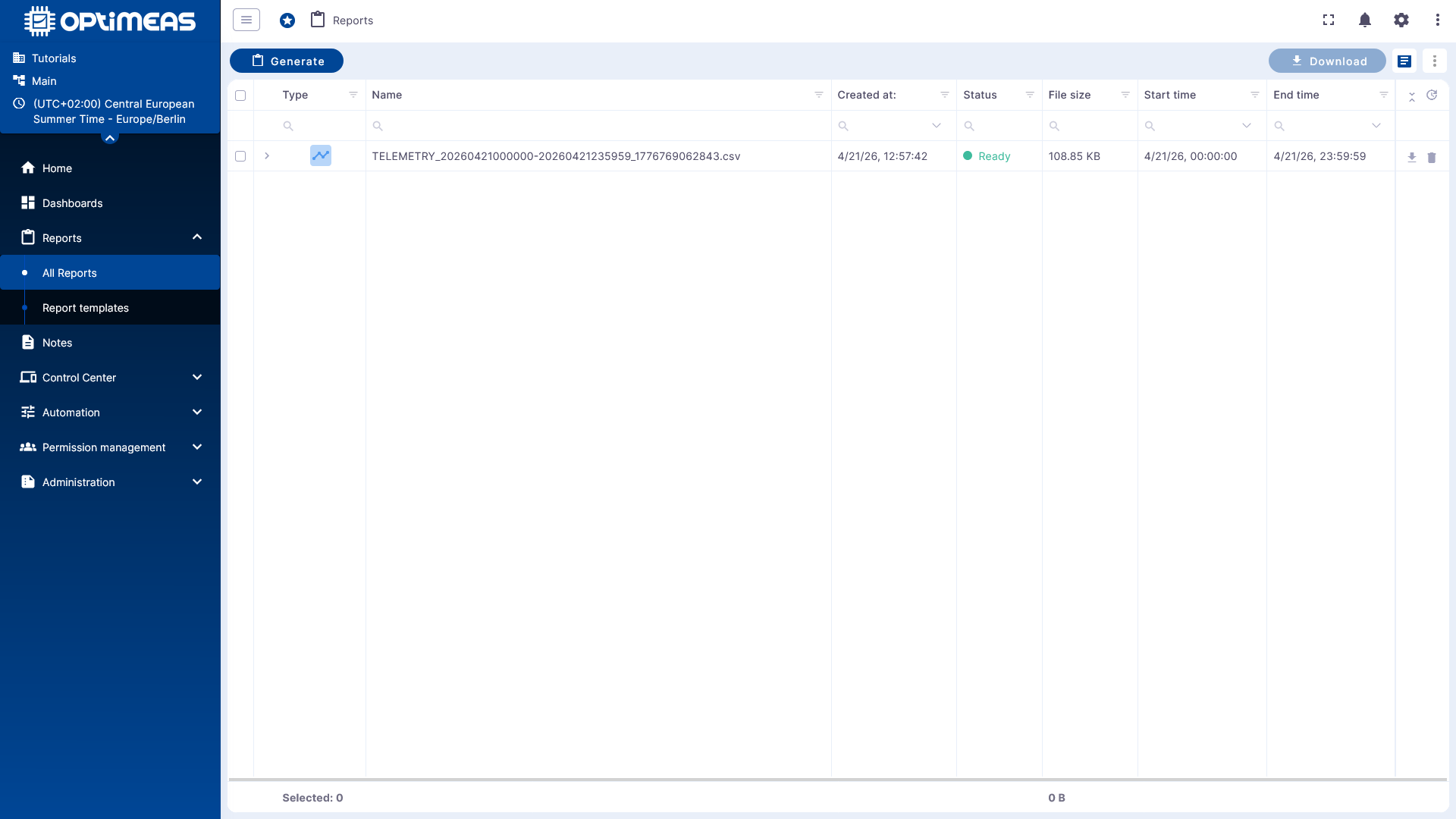
The report table provides an overview of reports that have already been generated or are currently being processed.
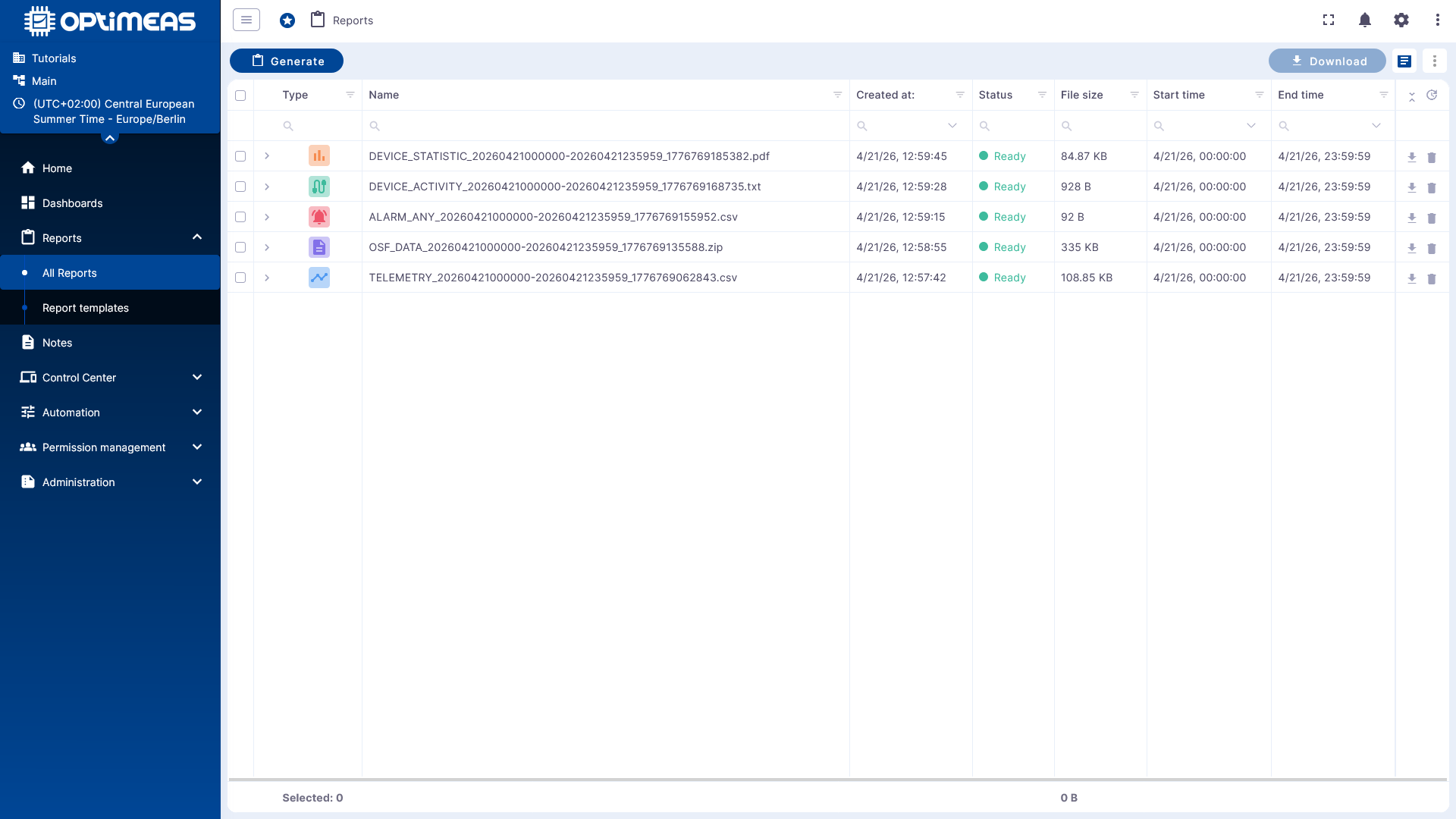
The table displays information such as:
- Report type
- File name
- Creation date
- Status
- File size
- Start and end dates of the selected time period
You can use the table to search for, filter, and track reports. Completed reports can be downloaded directly, and entries that are no longer needed can be removed.
Practical Recommendations
It makes sense to create reports with a clear purpose and to narrow down time periods as specifically as possible. This reduces processing times and makes it easier to use the results later.
For recurring analyses, it is also recommended to use consistent naming conventions for report files so that reports can be quickly identified even when dealing with large amounts of data.