Event Processing
Event Processing
Event Processing complements the use of Rulechains when recurring alarm and event logic does not need to be manually set up as a separate node structure each time.
Two types of rules can be managed in this section:
- Calculate alarm rules for automatically calculating and generating alarms from incoming telemetry
- Enrich alarm rules for enriching already generated alarms with additional metadata
The table view displays all existing event processing rules. A new rule is created via Create in the upper left corner. Selected rules can be deleted in the upper right corner.
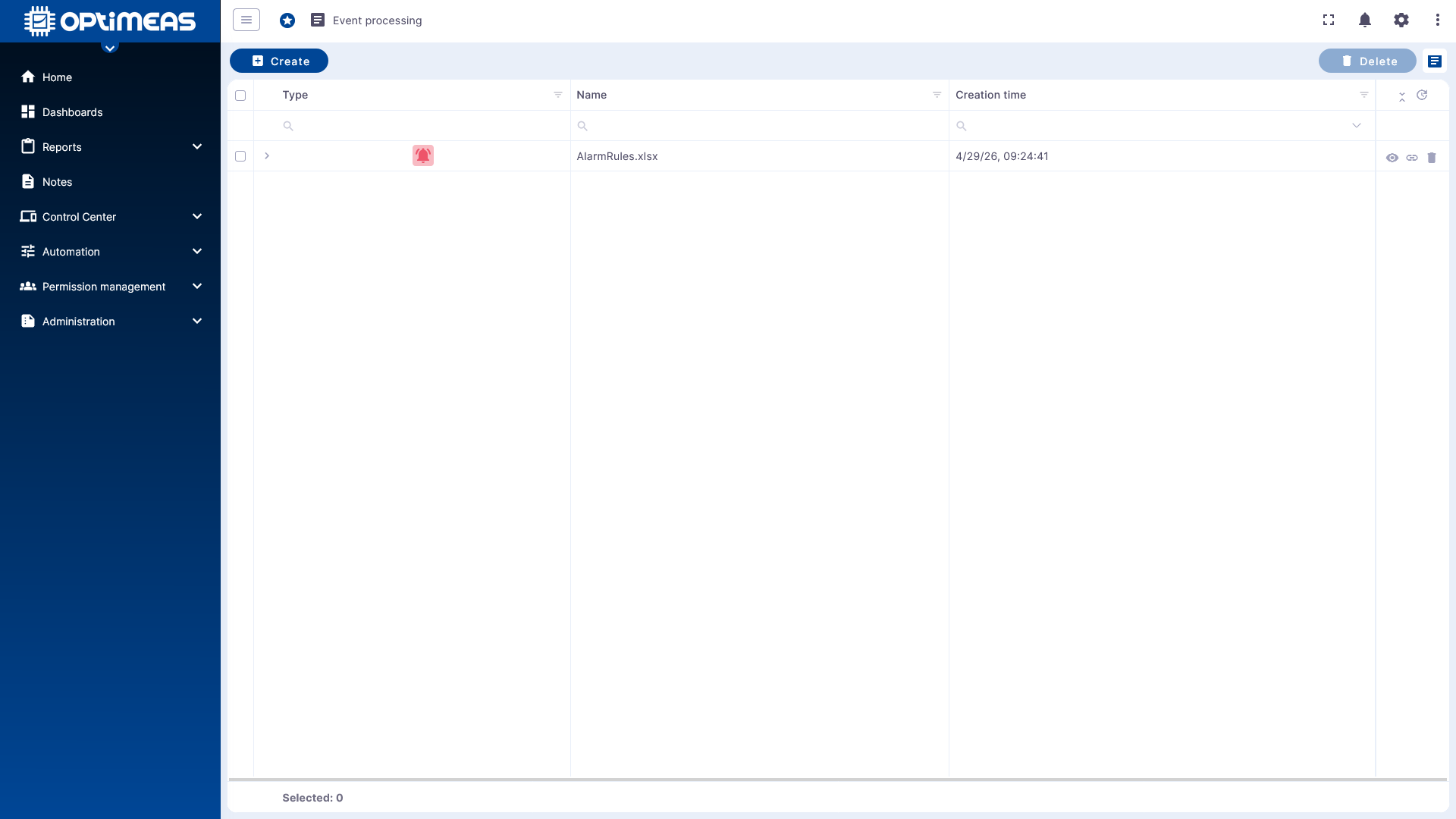
The following additional functions are available via the action column of an existing rule:
- View rule content
- Reassign rule to devices
- Delete rule
Basic Principle
Event Processing simplifies alarm workflows that would otherwise have to be set up manually.
For alarm rules, the core logic follows this sequence:
The tabular rule definition thus determines which telemetry is monitored, when an alarm is active, and what additional information is included.
Create a New Rule
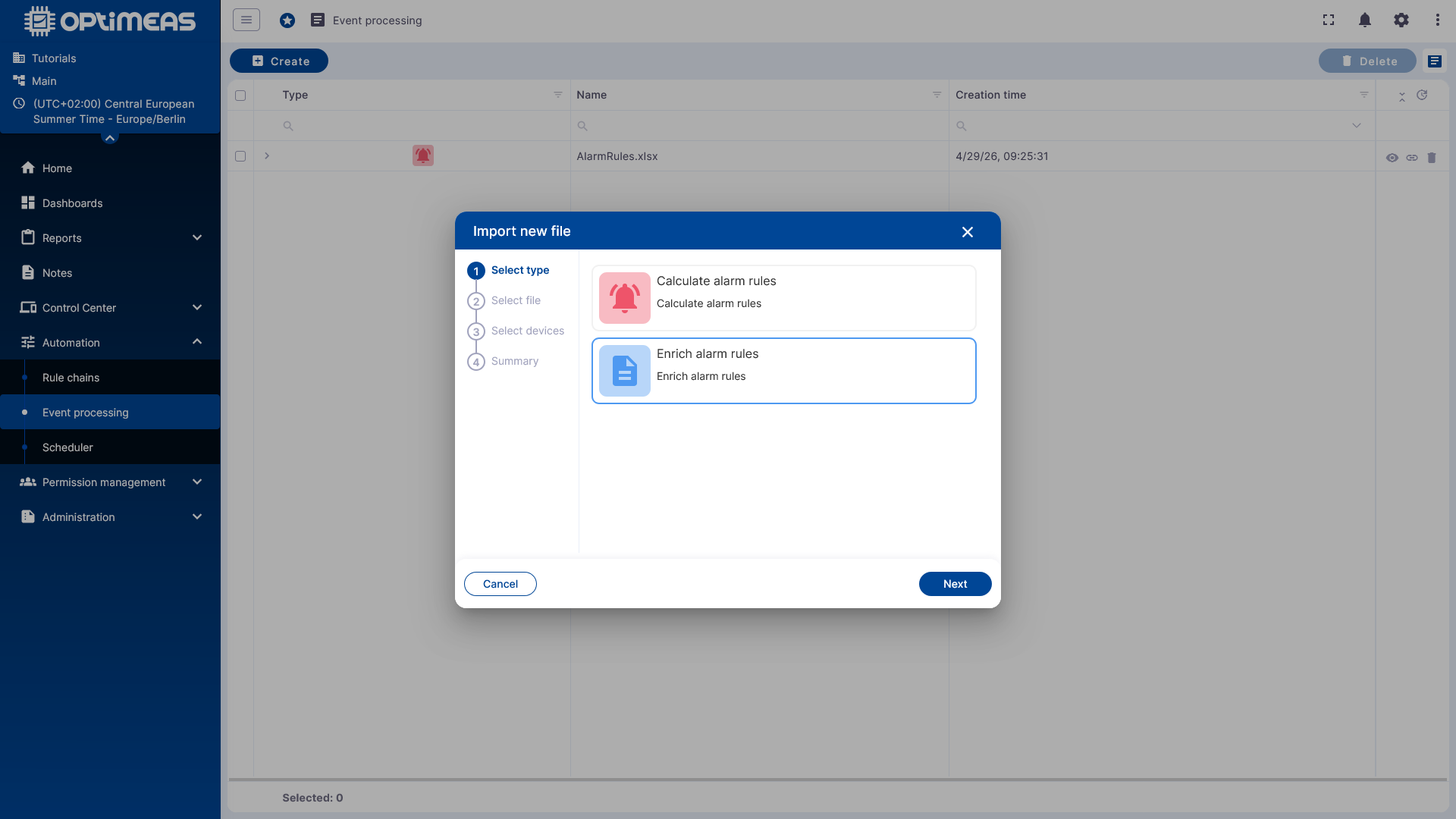
When creating a new event processing rule, the type is selected first.
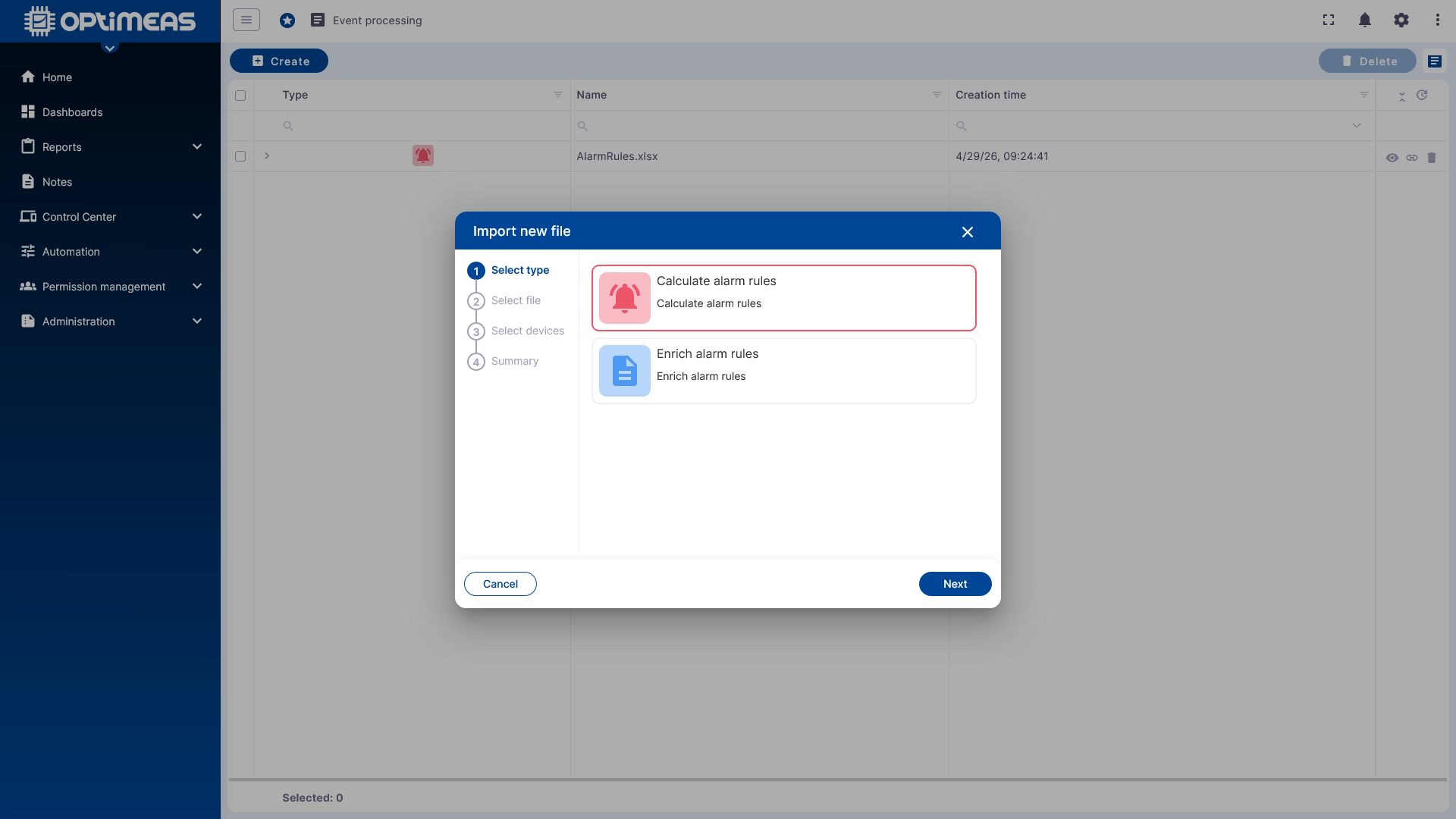
The following options are available:
- Calculate Alarm Rules
- Enrich Alarms
Next, upload a rule file and, in the next step, assign it to devices, device lists, device types, or the current project.
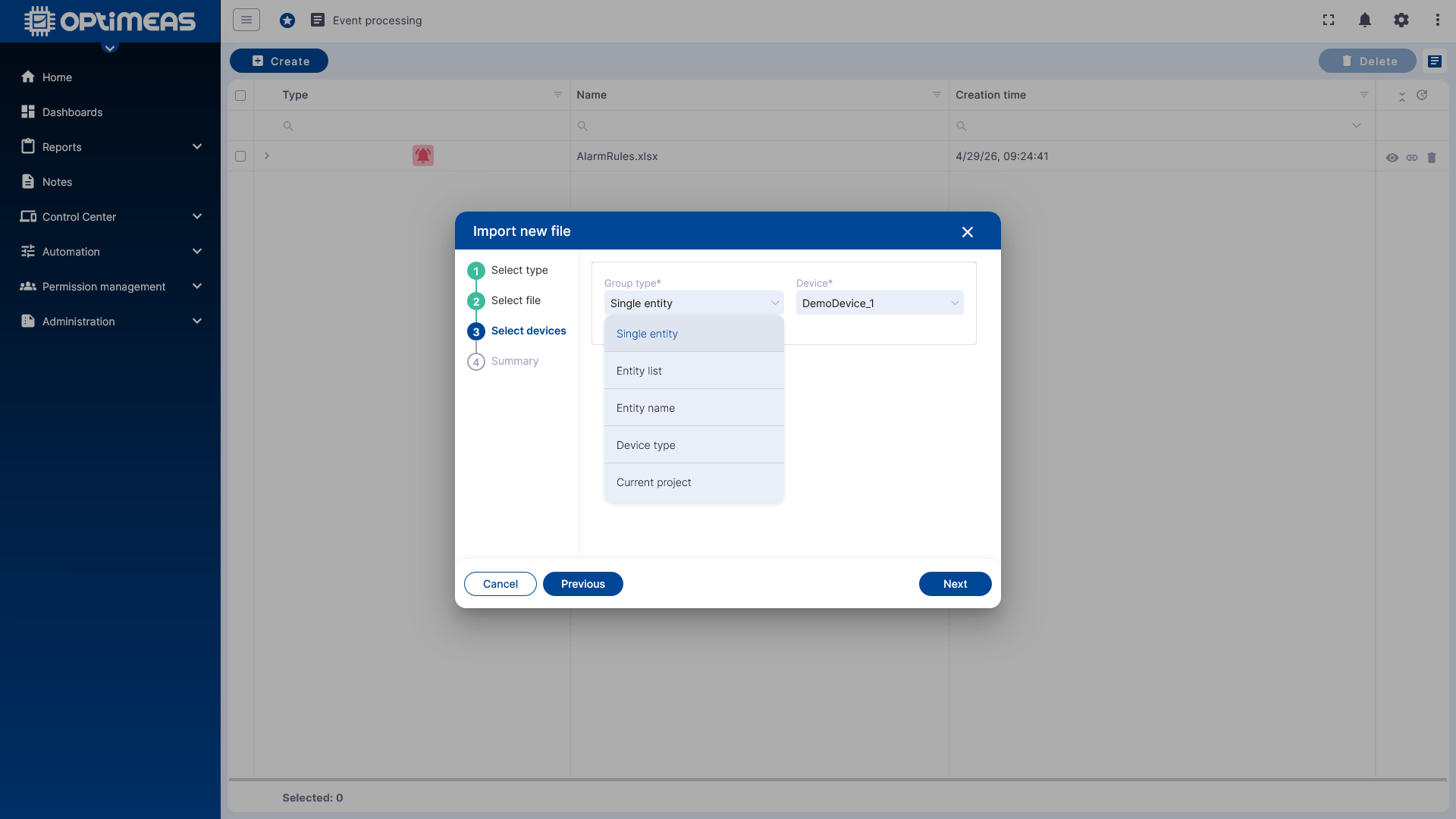
The assignment can be made using the following grouping types:
- Single entity
- Entity list
- Entity name
- Device type
- Current project
As a result, a rule applies only to the selected devices or the defined device group.
Calculate Alarm Rules
Calculating alarm rules is used to declaratively define alarm conditions from telemetry data, rather than modeling a separate rule chain for each alarm.
After import, the imported table can be checked directly in optiCLOUD.
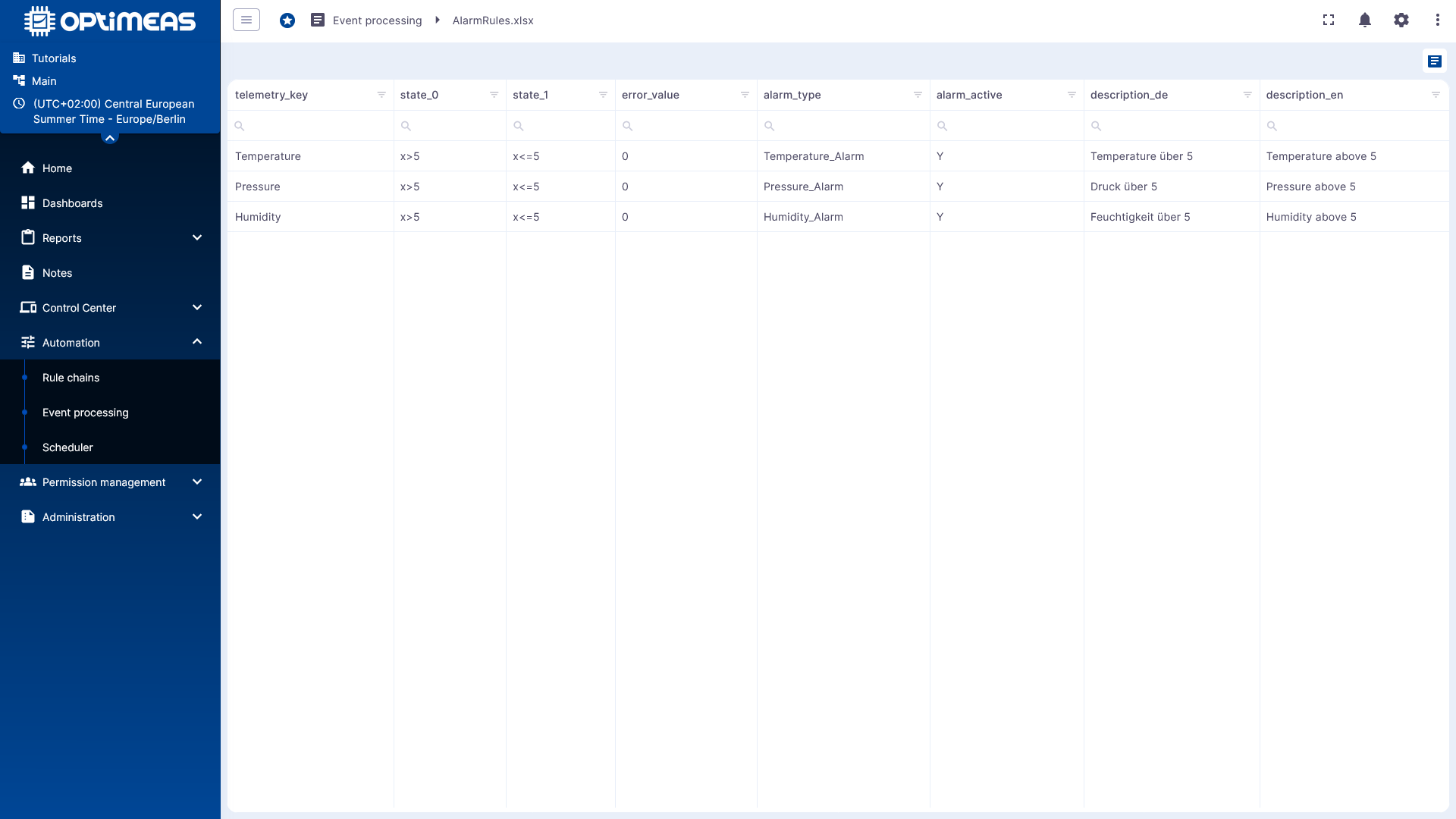
Structure of the rule file
The import file is structured as a table. Required columns are:
| Column | Meaning |
|---|---|
telemetry_key | Telemetry channel to which the rule applies |
state_0 | Condition or target state for status 0 |
state_1 | Condition or target state for status 1 |
error_value | Indicates which status is considered an alarm (state 0 or state 1) |
alarm_type | Name or type of the alarm to be generated |
alarm_active | Enables or disables the rule |
Optionally, any number of additional metadata columns can be added:
meta_field_<NAME>for metadata set independently of the statusmeta_field_<NAME>_value_0for metadata only instate_0meta_field_<NAME>_value_1for metadata only instate_1
The prefixes meta_field_ and the suffixes _value_0 and _value_1 are fixed.
Rule Calculations
States can contain simple fixed values or expressions. Examples include:
x == 1x >= 15x > 15 && x < 30x * 1.25 >= 100text == "myText"
This allows for both numerical thresholds and more complex logical conditions, where "x" is the variable representing the incoming telemetry value.
Example
| telemetry_key | state_0 | state_1 | error_value | alarm_type | alarm_active | meta_field_Description_EN | meta_field_Description_DE |
|---|---|---|---|---|---|---|---|
| Temperature | x>5 | x<=5 | 0 | Temperature_Alarm | Y | Temperature above 5 | Temperature above 5 |
| Pressure | x>5 | x<=5 | 0 | Pressure_Alarm | Y | Pressure above 5 | Pressure above 5 |
| Humidity | x>5 | x<=5 | 0 | Humidity_Alarm | Y | Humidity above 5 | Humidity above 5 |
The example can be downloaded here (conversion to .xlsx required)
Reassigning devices
Rules that have already been created can be reopened later and assigned to other devices or groups.
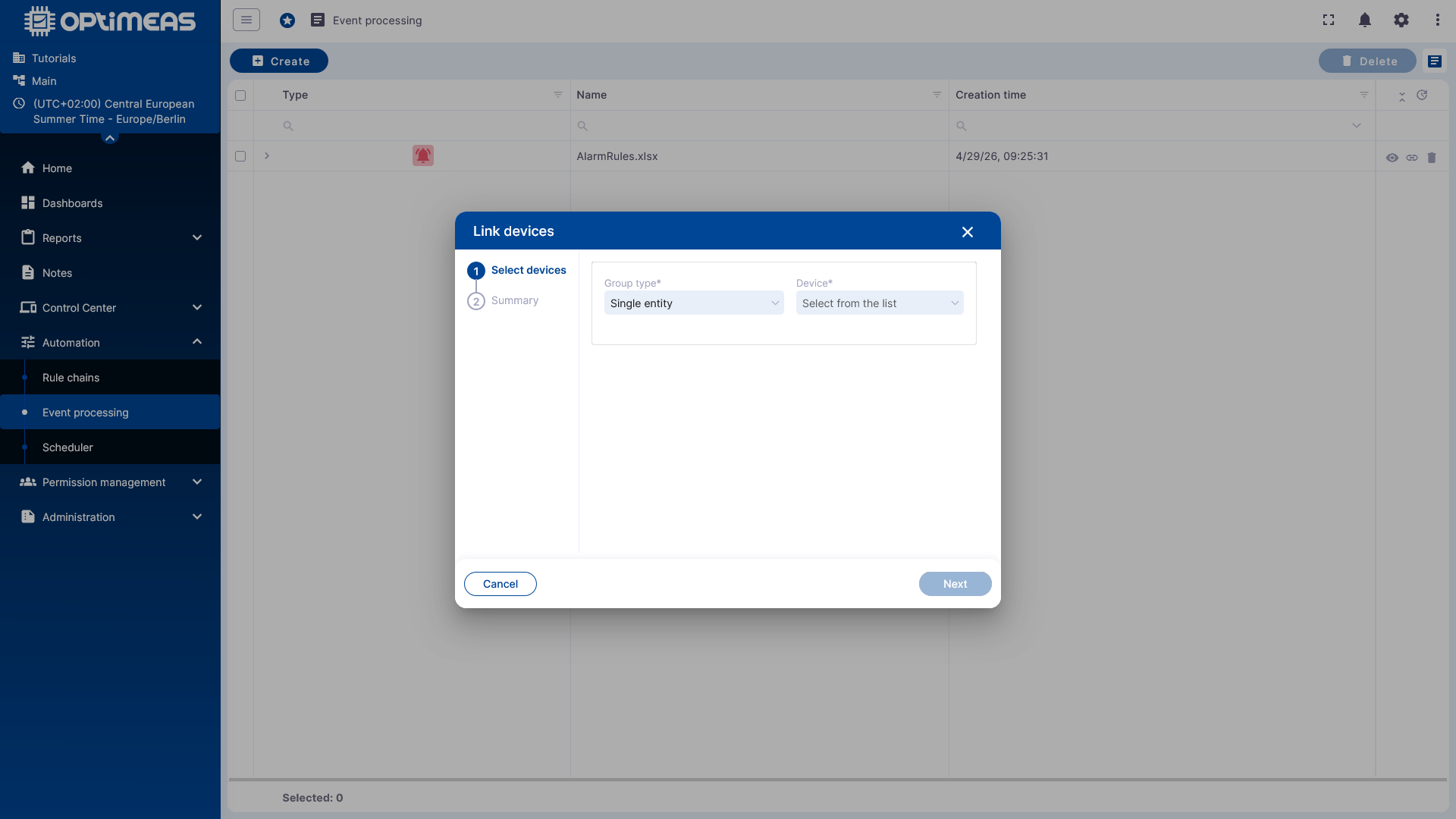
This is useful if the same rule definition is to apply to additional devices without having to create a second rule file.
Integrate into the Root Rule Chain
For the rule to become active, it must also be integrated into the Root Rule Chain.
To do this, use the Complex Alarm node under Event Rule in the Root Rule Chain.
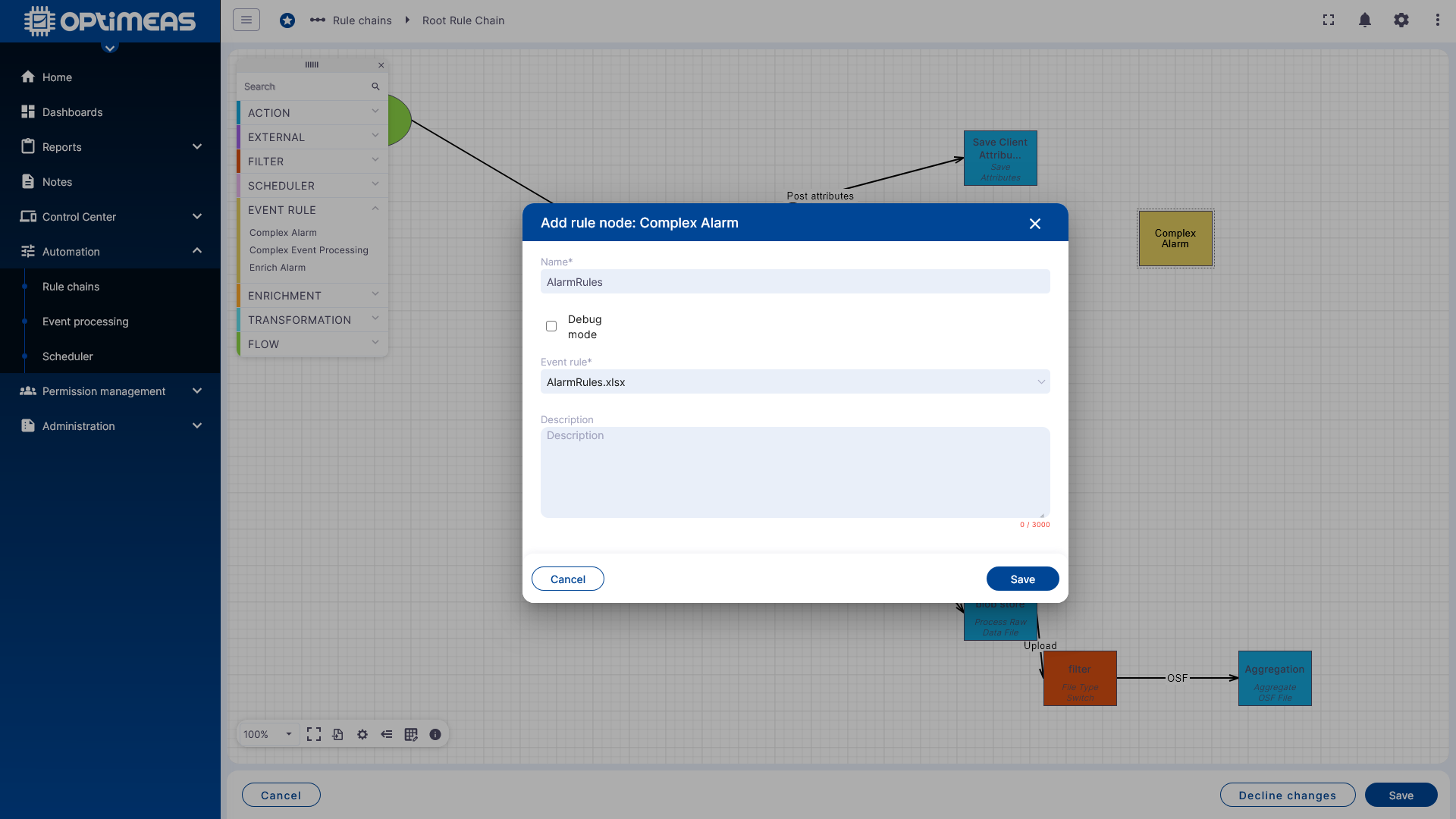
The node is inserted after Save Timeseries and connected to the Success relation.
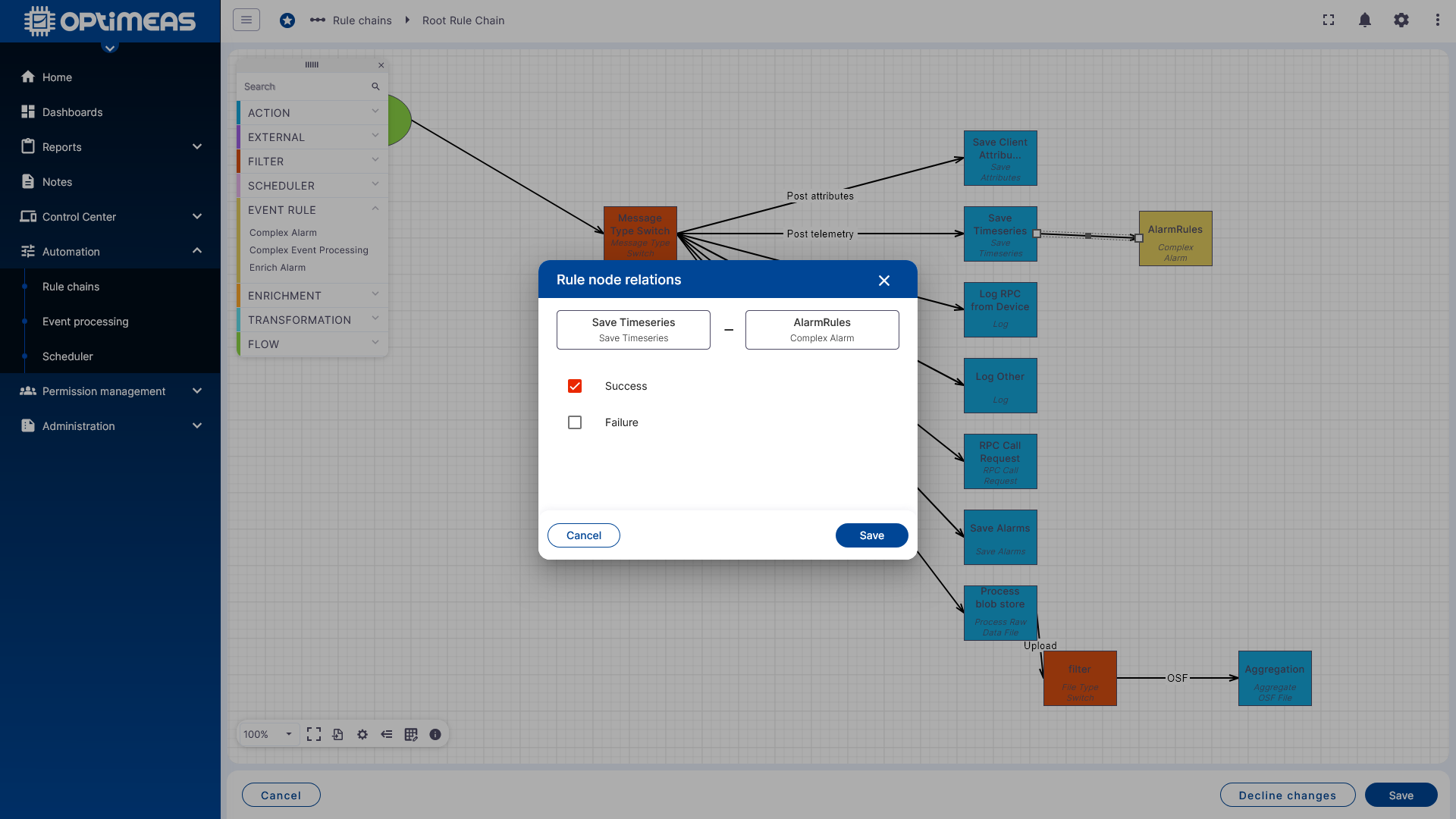
This ensures that an incoming telemetry value is first saved and then evaluated based on the alarm rules.
Result on the device
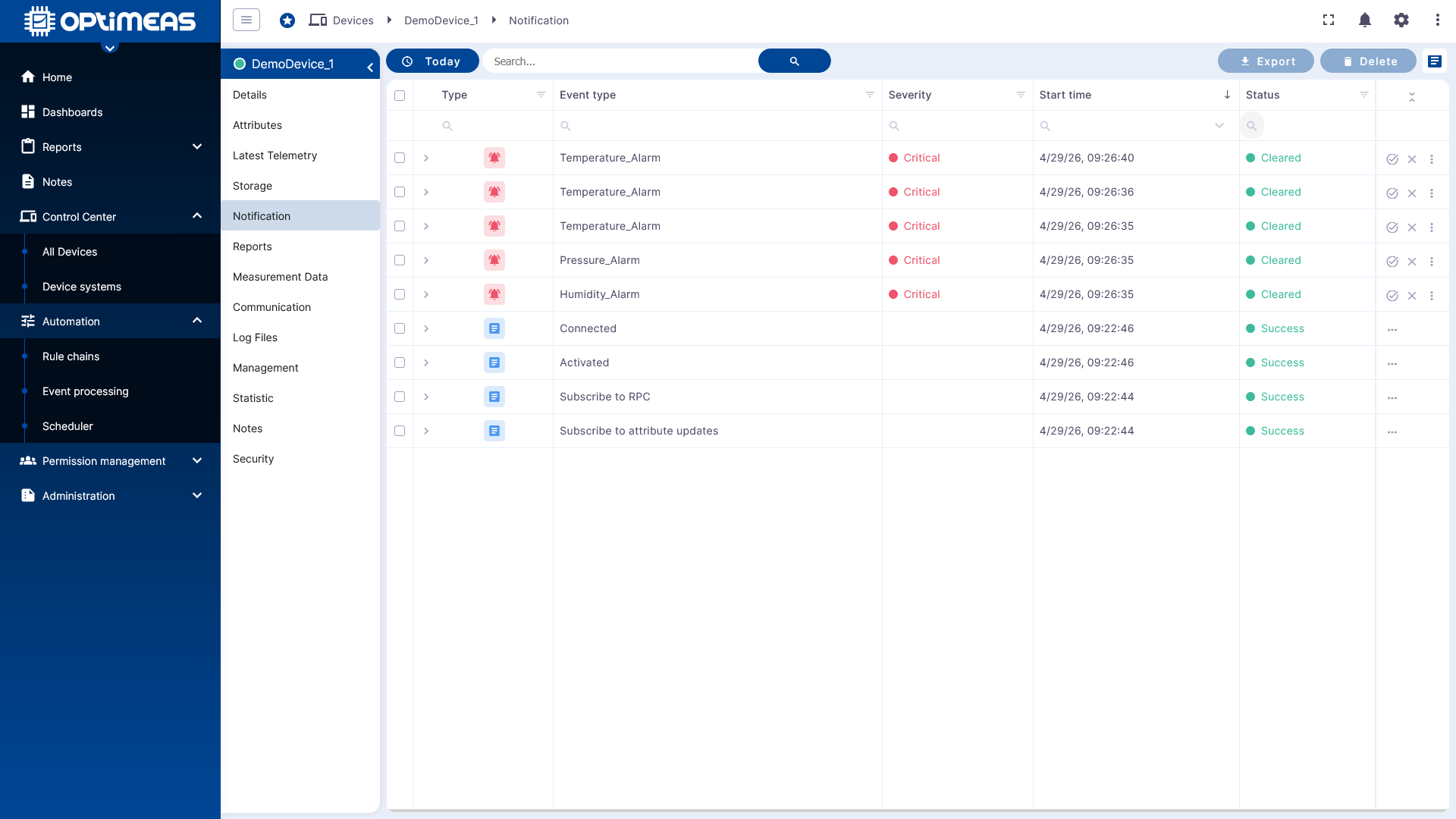
After saving the Root Rule Chain, the generated alarms appear on the respective device in the Notifications section. In the row of each alarm, the entire alarm content can be viewed via the Details icon.
Enriching Alarms
Enriching Alarms is used to add additional information to alarms that the device sends directly to OptiCloud based on their alarm_type, such as operating instructions, service messages, or other recommended actions. This is useful when, for example, the device transmits alarms from a control unit to the cloud, but these alarms contain little information. OptiCloud can then enrich these directly with existing information, which simplifies their display in dashboards or subsequent analysis of the alarms.
The creation process is identical: select the type, upload the file, and specify target devices or groups.
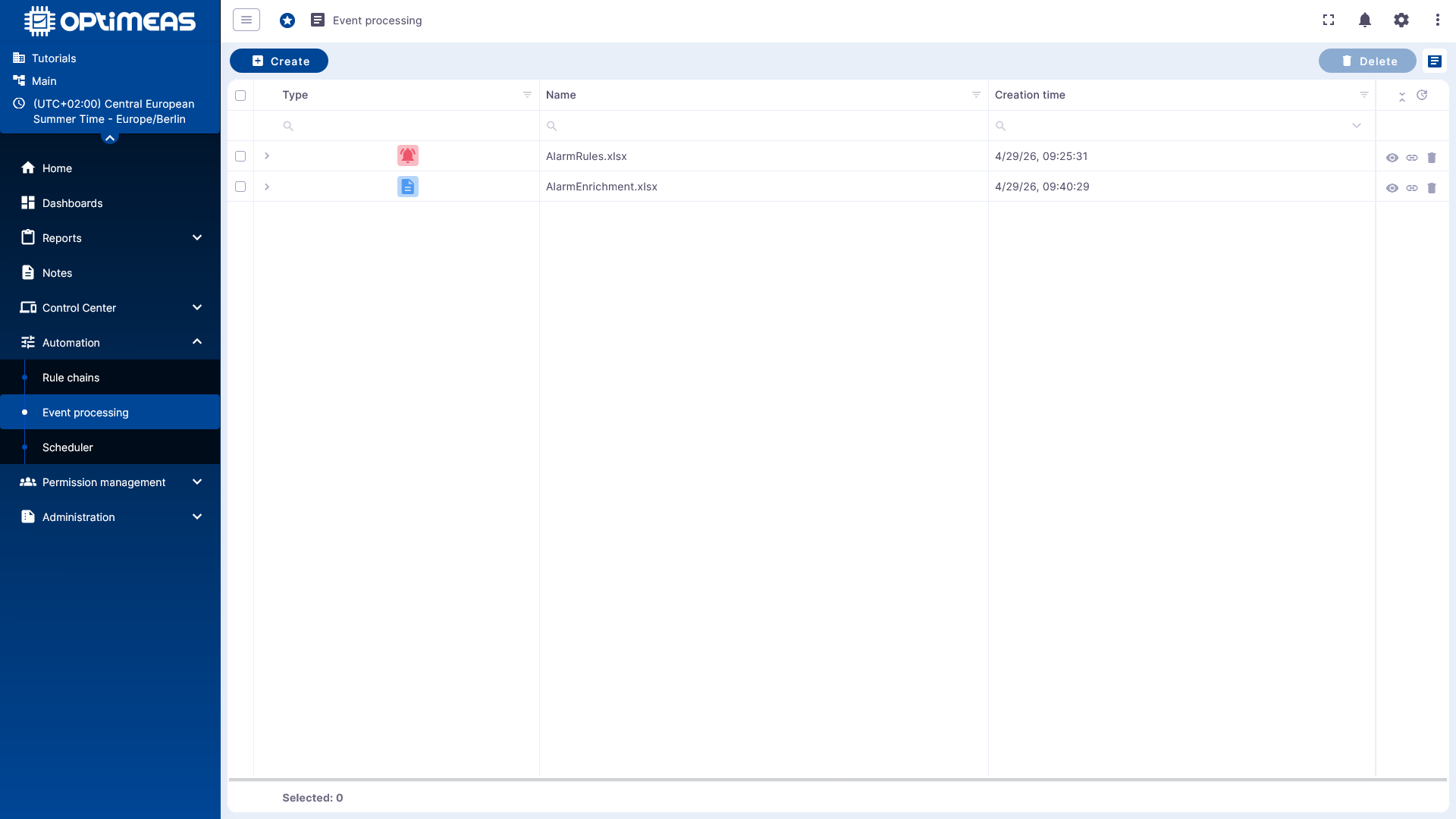
After creation, the rule also appears in the general Event Processing overview.
After importing, the imported table can also be viewed directly.
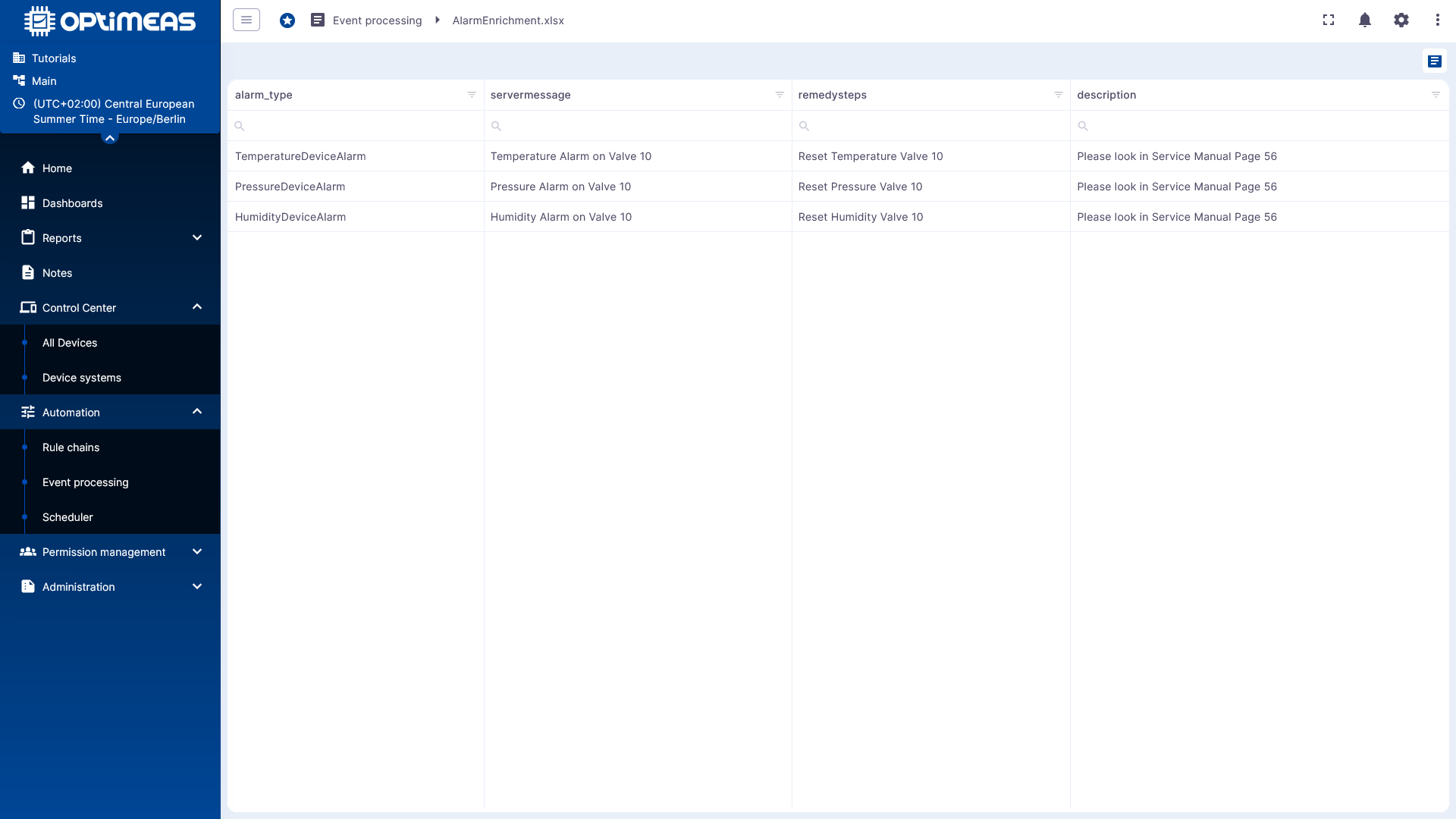
Structure of the rule file
Required columns are:
| Column | Meaning |
|---|---|
alarm_type | Alarm type to be enriched |
alarm_active | Enables or disables the respective rule |
Additional metadata is added as further columns in the format meta_field_<NAME>.
Example
| alarm_type | alarm_active | meta_field_servermessage | meta_field_description | meta_field_remedysteps |
|---|---|---|---|---|
| TemperatureDeviceAlarm | y | Temperature Alarm on Valve 10 | Please look in Service Manual Page 56 | Reset Temperature Valve 10 |
| PressureDeviceAlarm | y | Pressure Alarm on Valve 10 | Please look in Service Manual Page 56 | Reset Pressure Valve 10 |
| HumidityDeviceAlarm | y | Humidity Alarm on Valve 10 | Please look in Service Manual Page 56 | Reset Humidity Valve 10 |
The example can be downloaded here (conversion to .xlsx required)
Activate Enrichment Rule
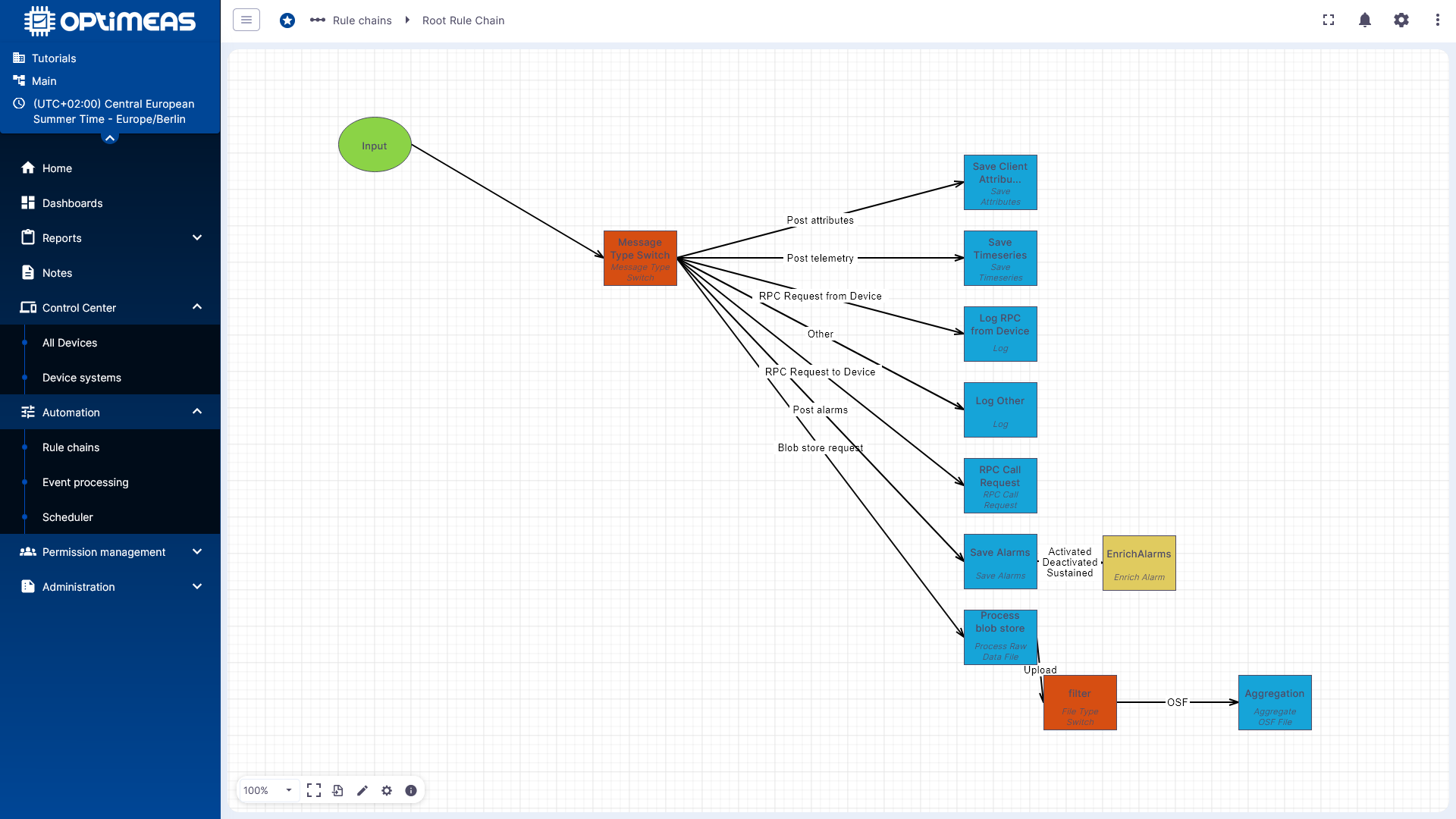
For processing in the Root Rule Chain, the Enrich Alarm node is used under Event Rule.
The node is connected after Save Alarms so that the alarm is first saved and then supplemented with the additional fields.
Result in the alarm details
After activation, the additional information can be viewed in the device view under Notification via the alarm details.
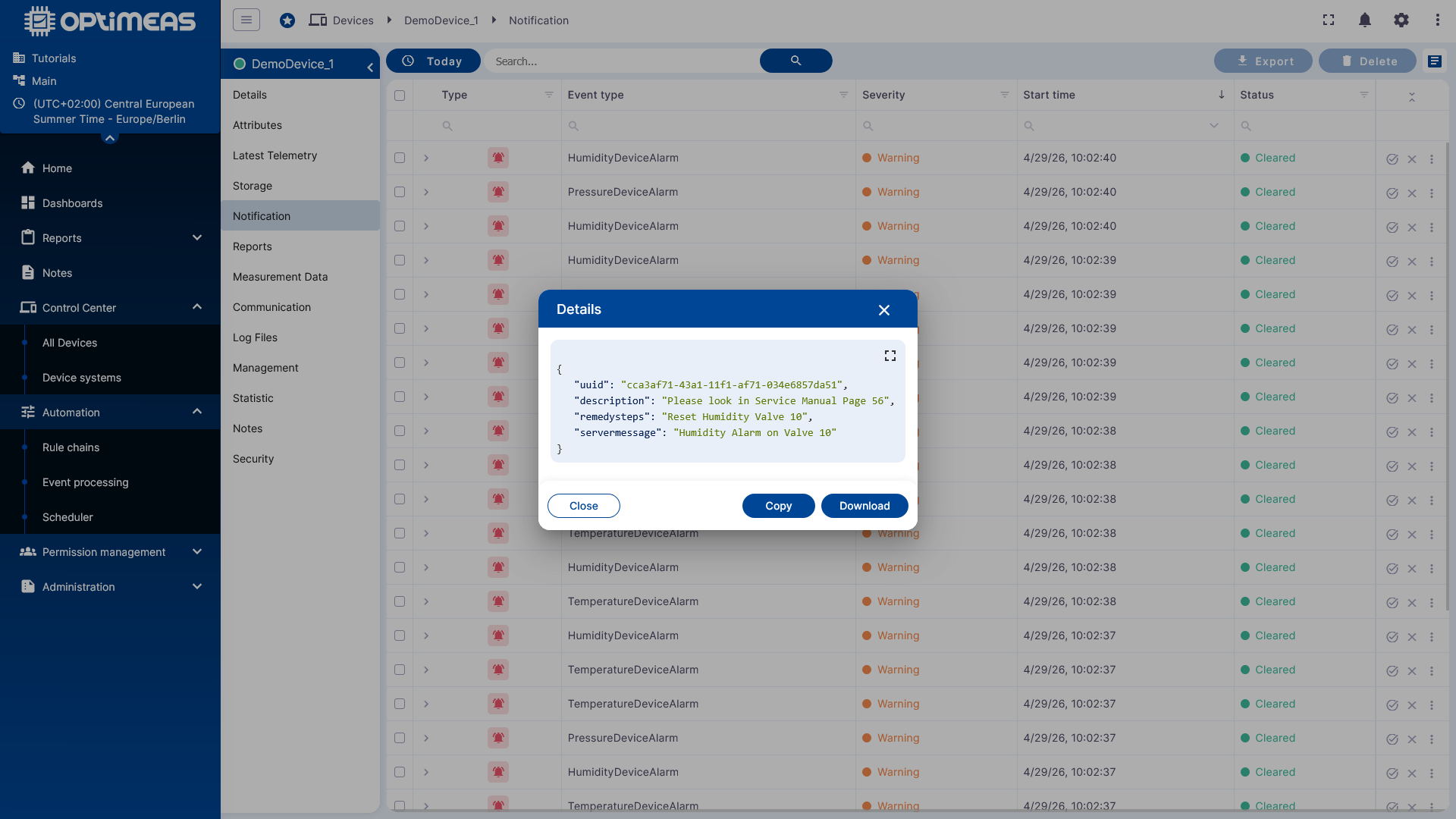
This allows context-related information such as a description, server message, or recommended actions to be displayed directly for an alarm.
Summary
In optiCLOUD, Event Processing serves as a simplified interface for two recurring alarm workflows:
- Calculating alarms from telemetry conditions
- Enriching existing alarms with additional metadata
Both rule types are first imported and assigned to devices. They only become active once the corresponding Event Rule node has been integrated into the Root Rule Chain and saved.